Configuring Microsoft Outlook 2003

A common Outlook configuration task is to disable certain menu and toolbar commands and shortcut keys in order to prevent users from using those features. This is yet another task that you can accomplish with Group Policy Objects, as described in Chapter 2, using the options listed in the Group Policy Editor under User Configuration/Administrative Templates/ Microsoft Office Outlook 2003/Disable items in user interface.
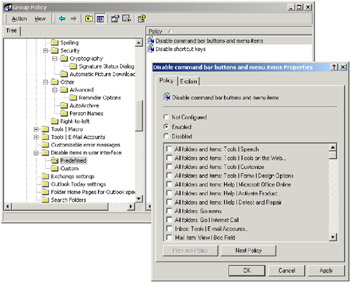
Under Predefined, the Group Policy Editor lists just 17 predefined menu/toolbar commands (see Figure C.1) and only one predefined shortcut key, Ctrl+Enter. This appendix explains how to disable others and provides a comprehensive list of the menu/toolbar command IDs required for the procedure.
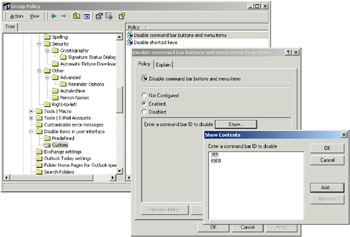
To disable a menu or toolbar command that is not on the predefined list, navigate in the Group Policy Editor to the User Configuration/Administrative Templates/Microsoft Office Outlook 2003/Disable items in user interface/Custom node and open the Disable command bar buttons and menu items policy, then click Show. As you can see in Figure C.2, the interface for this policy setting is quite simple. To disable a particular command, click Add, type in the numeric ID for the command you want to disable, and then click OK. Repeat for any additional commands you want to disable.
In Figure C.2, the commands with IDs 355 and 6908...