QuickTime for the Web: For Windows and Macintosh, Second Edition
A comprehensive explanation of QuickTime for every multimedia author.
 TABLE OF CONTENTS
 Sometimes you need to adjust the QuickTime settings or the QuickTime plug-in to get things working properly. This appendix shows you how.
Once QuickTime is installed, you should open the QuickTime Settings control panel (it's with the rest of your Windows or Mac OS control panels).
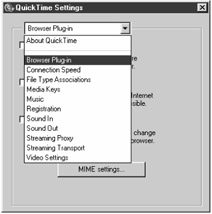
The illustration shows the Windows menu. On a Macintosh, there is also an AutoPlay item, while the File Type Associations, Sound In, Sound Out, and Video Settings items do not appear.
Click the appropriate checkboxes to enable audio CDs, and some CD ROMs, to start playing automatically when inserted.
Choose this item to set up the QuickTime browser plug-in. It brings up a panel with three checkboxes and a button.
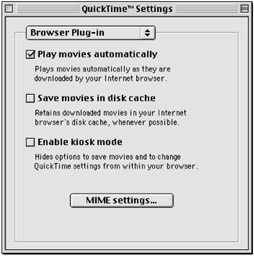
Click "Play movies automatically" to play movies embedded in Web pages without having to click the Play button.
Click "Save movies in disk cache" to save movies in the browser's disk cache when possible (there isn't always enough room).
Click "Enable kiosk mode" to disable the plug-in's ability to save movies or change the plug-in settings from within the plug-in. You might want to do this if you are setting up a computer as a public Internet kiosk.
Click the "MIME settings" button to select the media types you want the QuickTime plug-in to handle. QuickTime updates the registry used by any browsers that use the plug-in.
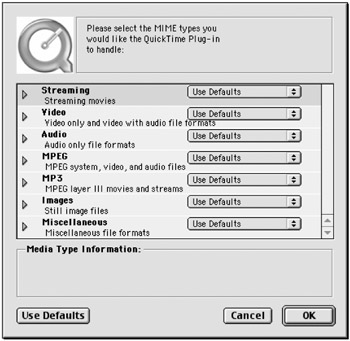
| Tip | This is the simplest and most reliable way to configure your browser to use the QuickTime plug-in for the... |