Learning Mastercam Mill X Step by Step in 2D
Presenting the contents in a clear and logical sequence without wordy explanations, this unique text presents a thorough introduction to Mastercam Mill X for students with little or no prior experience.
 TABLE OF CONTENTS
 After completing this chapter you will be able to:
Understand the uses of Mastercam s tab function.
Know how to specify tab parameters to create various types of tabs.
Explain the methods of placing tabs on CAD models.
Know how to edit tabs.
Explain how to use the View Manager to create and set WCSs, Tplanes and their origins for work offsets.
Know how to assign generic work offset numbers in the view manager.
Understand how to select previously created work offsets using the View Manager.
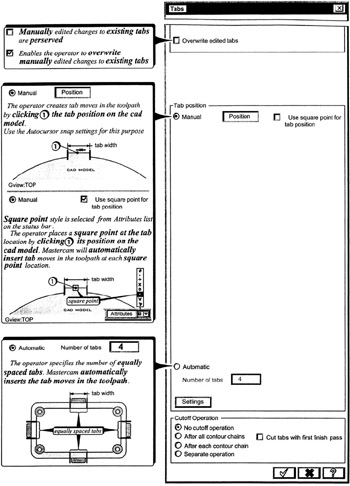
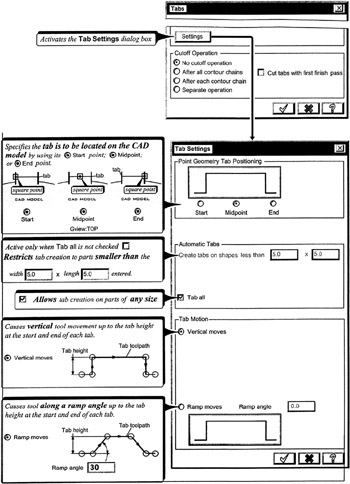
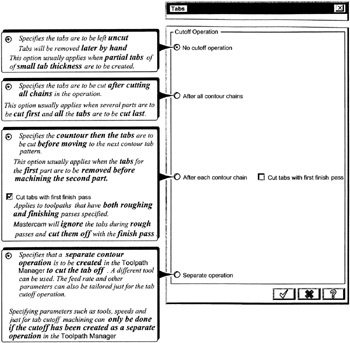
Mastercam s Tab function is used to create undercut areas of a toolpath. These areas can be used to help hold down a nested pattern of parts that are to be cut from a single sheet of metal. Necessary jumps around clamps and other holding devices can also be created via the tab function.
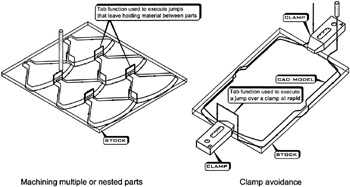
The Tabs dialog box contains the parameters for specifying various types of tabs. It is entered by clicking the Tabs button in the Contour 2D dialog box.
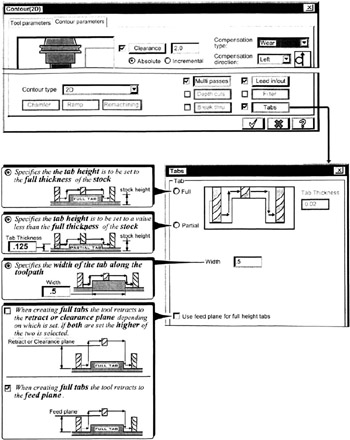
Click  the Tabs check on
Click  the
the  button
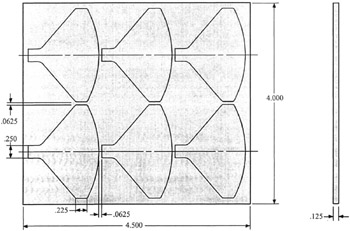
The pattern shown in Figure 10 2 is to be cut from a 4.5 4 .125 piece of brass. Assume the CAD model for the pattern has already been created. Use Mastercam s tab function as an aid in accomplishing the required machining.