Learning Mastercam Mill X Step by Step in 2D
Presenting the contents in a clear and logical sequence without wordy explanations, this unique text presents a thorough introduction to Mastercam Mill X for students with little or no prior experience.
 TABLE OF CONTENTS
 Mastercam X features the Customize dialog box for creating customized tool bars, drop down menus and the graphics right click menu. Customization enables the operator to design the Mastercam interface to work optimally for specific types of applications or user preferences.
The settings for toolbars and right-click menus are stored in Mastercam files with, the extension .mtb
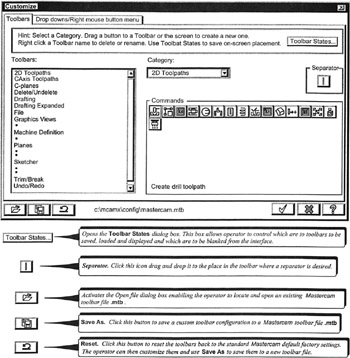
the Customize dialog box enables the operator to execute the following customizing functions with respect to toolbars:
Add or remove toolbar buttons
Create new toolbars
Rename toolbars
Delete toolbars
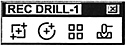
Create a custom toolbar menu with buttons for generating rectangular plates with holes arrayed in a rectangular pattern. Include the drill cycle button in the toolbar. Name the new toolbar REC DRILL 1
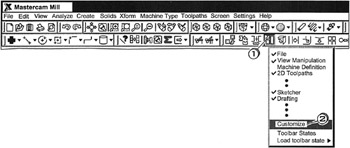
Right Click  on any toolbar button; move the cursor down and Click

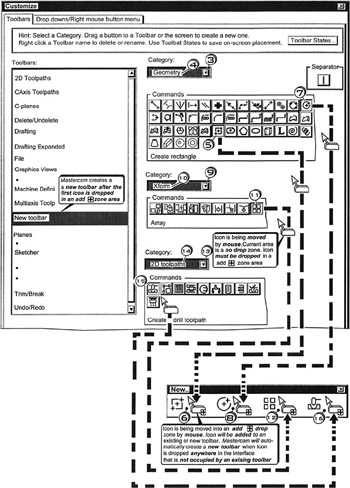
Click  the Category down button
Click 

Click  on the rectangle icon
  and keeping the left mouse button depressed drag the mouse to the location outside the dialog box and Release at
Click  on the Circle icon
  and keeping the left mouse button depressed drag the mouse to the location inside the new toolbar menu and Release at
Click  the Category down button
Click 

Click  on...
on...