Instant DVD Workshop 2.0

Featuring carefully detailed screenshots and step-by-step instructions, this Instant guide will show you how to create DVDs with Ulead software in a concise, time-efficient way.
 TABLE OF CONTENTS
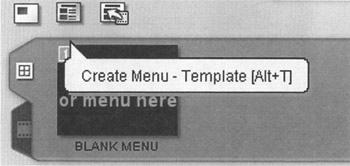
 Although creating menus using templates can be more time-consuming than using the Menu Wizard, it also provides greater creative flexibility. Click the Create Menu - Template icon or press Alt+T.
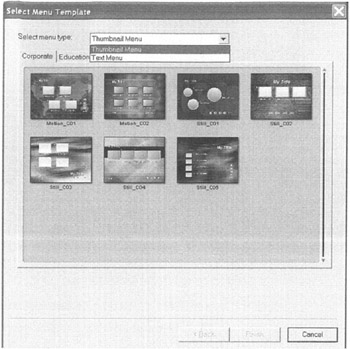
Choose a menu template from the Select Menu Template dialog and click Finish. Thumbnail menus use thumbnail images (also called graphic objects) as buttons while text menus use linked text as buttons.
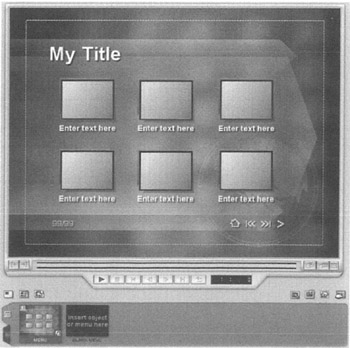
The selected menu template will appear in both the Preview window and the Menu List.
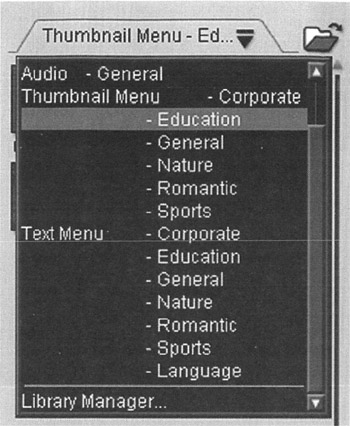
Menu templates may also be selected from the Library. Click the Down Arrow icon to open the drop-down Library menu. Choose a menu template category.
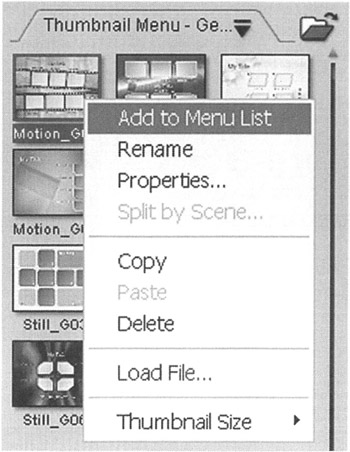
Select a menu template by right-clicking a menu and clicking Add to Menu List or drag the menu template to the Preview window.
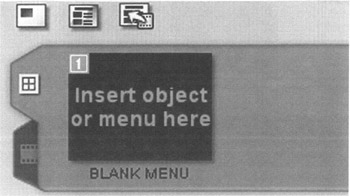
Navigate to the Menu Screen. You'll notice that there are two tabs on the left side of the Menu List that are not available in the Capture or Edit screens. By default the Menu List is displayed, but by selecting the lower tab you may also access the Title List while working in the Menu screen.
A link is an association between a button and a video clip. When a button is selected, the media associated, or linked, with the button is played. This is much like the hyperlinked text used all the time with Internet browsers. Drag Title from the Title List...