Advanced Photoshop Elements 6 for Digital Photographers

Advanced Dodging and Burning-In

After years of my hit and miss approach to dodging and burning in the darkroom I can still remember my reaction to seeing Photoshop Elements performing real-time lightening and darkening You are kidding! . Not only could I paint in light and dark areas on my picture using a soft-edged brush, I could also vary the strength of the effect and the size of the brush used for application. In addition, I could choose to alter shadow, midtones or highlights separately and undo my actions with a single keystroke. All this flexibility and with the lights on as well!

I would think that most new users to Photoshop Elements would experience much of the same excitement as I did when they first discover the Dodge and Burn-in tools. For the majority of simple enhancement tasks a few quick strokes of these tools will provide plenty of control over your picture s tones, but there are occasions when you need a little more flexibility. I use the following techniques to provide a little more customization to my dodging and burning-in in my work.


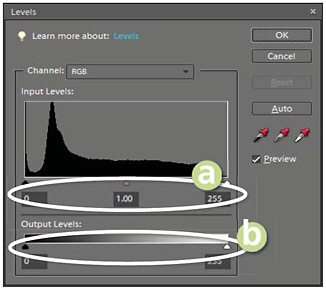
Input and output sliders >>
(a) Black, midtone and white Input sliders.
(b) Black and white Output sliders.

6.20 Using selections to change tone

Suitable for Elements 6, 5.0, 4.0, 3.0, 2.0, 1.0 Difficulty level Intermediate Resources Web Image 6.20

Related Techniques 6.18 Tools used Selection tools Menus used Select

You can evenly alter...

UNLIMITED FREE
ACCESS
TO THE WORLD'S BEST IDEAS

SUBMIT
Already a GlobalSpec user? Log in.

This is embarrasing...

An error occurred while processing the form. Please try again in a few minutes.

Customize Your GlobalSpec Experience

Category: Distributed Control Systems (DCS)
Finish!
Privacy Policy

This is embarrasing...

An error occurred while processing the form. Please try again in a few minutes.