Advanced Photoshop Elements 6 for Digital Photographers

Black and White and Color

The same two-layer erase back technique can be used for creating photographs which contain both color and black and white elements, but I prefer to use a different method based around Elements masking options.


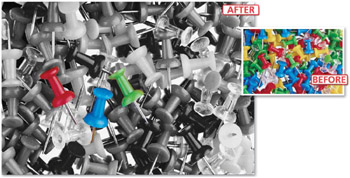
Color and black and white >> By combining your selection skills, Elements masking options and the features of the Gradient Map adjustment layers you can create an image where black and white and color happily coexist.

6.32 Layer mask and gradient map

Suitable for Elements 6, 5.0, 4.0, 3.0, 2.0, 1.0 Difficulty level Intermediate Resources Web image 6.32

Related Techniques 6.18 Tools used Selection tools Menus used Select, Layer

With the color image open make a selection of the objects that will not be converted to black and white. In the example I used a combination of the Magnetic Lasso and the standard Lasso tools to select the three map pins, but you could also use the Magic Selection Brush to achieve the same results. Next, feather the selection (Select > Feather) slightly with a setting of 1 pixel to soften the edge of the effect. Invert the selection (Select > Inverse) so that the background (everything other than the map pins) is now selected. Then, with the selection still active, create a new Gradient Map adjustment layer (Layer > New Adjustment Layer > Gradient Map). When the Gradient Map dialog appears select the map with a smooth transition...

UNLIMITED FREE
ACCESS
TO THE WORLD'S BEST IDEAS

SUBMIT
Already a GlobalSpec user? Log in.

This is embarrasing...

An error occurred while processing the form. Please try again in a few minutes.

Customize Your GlobalSpec Experience

Category: Photographic Films
Finish!
Privacy Policy

This is embarrasing...

An error occurred while processing the form. Please try again in a few minutes.