Advanced Photoshop Elements 6 for Digital Photographers

Split Toning

Once you have mastered the art of toning your pictures it is time to spread your tinting wings a little. One of my favorite after-printing effects back in my darkroom days was split toning. This process involved passing a completed black and white print through two differently colored and separate toning baths. This resulted in the print containing a mixture of two different tints.

For example, when an image is split toned with sepia first and then blue toner the resultant picture has warm (brown) highlights and midtones, and cool (blue) shadows. Getting the right toning balance between the two solutions was difficult and then trying to repeat the process uniformly over a series of images was even harder. Thankfully I can replicate the results of split toning in my digital picture with a lot less trouble and a lot more predictability.


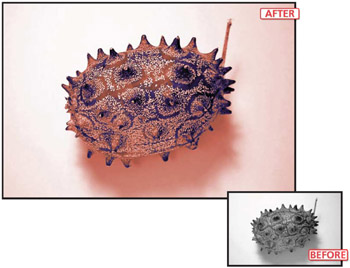
Split tone >> With the aid of some tricky selection techniques it is possible to tint different tonal ranges of an image with alternative colors. This style of tinting is called split toning and traditionally is created by passing a photographic print through multiple toning baths.

6.28 Select and tone

Suitable for Elements 6, 5.0, 4.0, 3.0, 2.0, 1.0 Difficulty level Intermediate Resources Web image 6.28

Related techniques 6.26 Tools used Magic Wand Menus used Select, Enhance

In order to tint a select range of tones such as midtones and shadows I must first select...

UNLIMITED FREE
ACCESS
TO THE WORLD'S BEST IDEAS

SUBMIT
Already a GlobalSpec user? Log in.

This is embarrasing...

An error occurred while processing the form. Please try again in a few minutes.

Customize Your GlobalSpec Experience

Category: Ink and Toner Cartridges
Finish!
Privacy Policy

This is embarrasing...

An error occurred while processing the form. Please try again in a few minutes.