3D Graphics ReferencePoint Suite

Create basic 3D geometry, presentations, and animations and implement NURBS modeling in 3-D Studio Max.
 TABLE OF CONTENTS
 Adobe Streamline 4.0 can be used to edit line art, such as graphs and diagrams. Streamline provides various tools to edit colors and lines in images. You can use the magic wand tool to select pixels within the same range. The line tool is used to draw lines in images. Streamline also provides tools to edit straight and curved lines.
This ReferencePoint explains how to work with Streamline. It discusses the tools used to edit raster and vector images and describes how to preview and save vector images.
The Streamline Interface is similar to that of other Adobe Products, such as Adobe Photoshop and Illustrator. Figure 3-1-1 shows the Streamline environment:
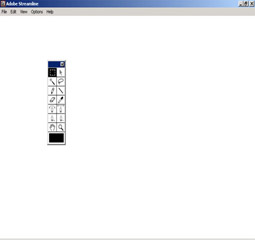
The Streamline interface includes a menu bar. The menus available are:
File
Edit
View
Options
Help
The Streamline environment includes the toolbox, which helps in editing vector and raster images. Figure 3-1-2 shows the toolbox:
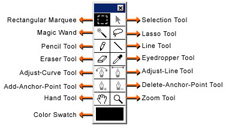
The marquee tool is used to select a particular area in an image. The selection is made within a rectangle.
The magic wand tool is used to select pixels of similar color, without making an outline. This tool can be used to select the clouds in an image.
The lasso tool is required for freehand selection.
You can use the pencil tool to paint an area on an image or draw freehand lines. You can choose the color from the color swatch and the...