Applied Inventor

Create a simple sketch using the Sketch Panel
Dimension a sketch using the General Dimension command
Revolve a sketch in the Part Features Panel using the Revolve command
Create a hole in the Part Features Panel using the Extrude command
Create a series of holes in the Part Features Panel using the Circular Hole command
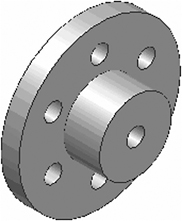
Chapter 2 includes instruction on how to design the part shown below.

Start Inventor 10 by referring to Chapter 1 Getting Started .
After Inventor 10 is running, begin a new sketch.
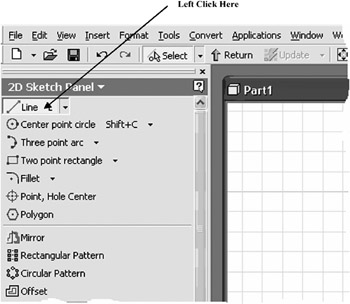
Move the cursor to the upper left corner of the screen and left click on Line as shown in Figure 1.
Figure 1
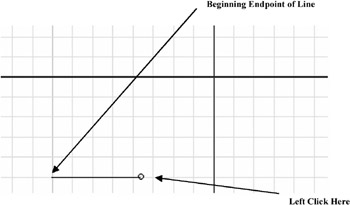
Move the cursor somewhere in the lower left portion of the screen and left click once. This will be the beginning end point of a line as shown in Figure 2.
Figure 2
Move the cursor to the right and left click once as shown in Figure 2.
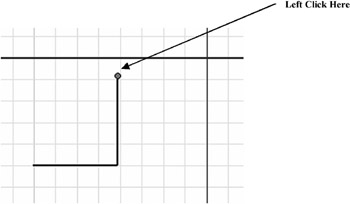
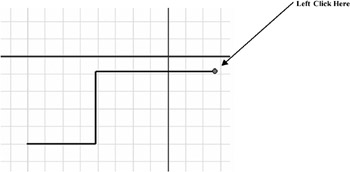
Move the cursor up and left click once as shown in Figure 3.
Figure 3
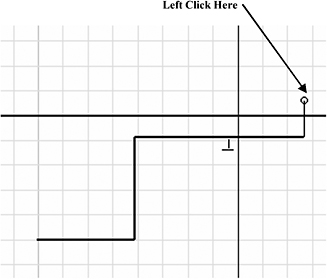
Move the cursor to the right and left click once as shown in Figure 4.
Figure 4
Move the cursor up and left click once as shown in Figure 5.
Figure 5
Move the cursor to the left and left click once. Ensure the dots between the first end point and the last end point appear as shown in...