Applied Inventor

Design multiple sketch parts
Learn to use the X, Y, and Z Planes
Learn to use the Wireframe viewing command
Learn to project geometry to a new sketch
Learn to use the Shell command
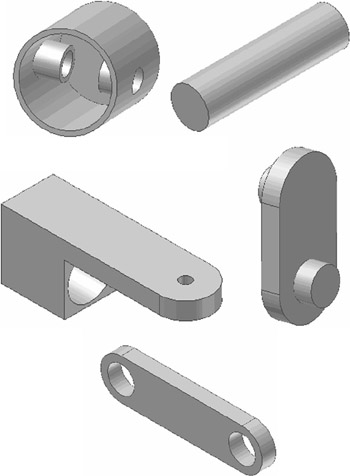
Chapter 6 includes instruction on how to design the parts shown below.

Start Inventor 10 by referring to Chapter 1 Getting Started .
After Inventor 10 is running, begin a new sketch.
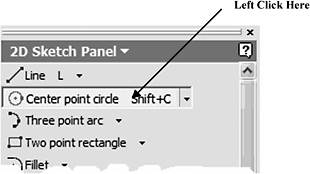
Move the cursor to the upper left corner of the screen and left click on Center point circle as shown in Figure 1.
Figure 1
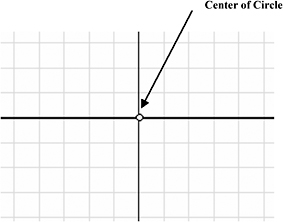
Move the cursor to the center of the screen and left click once. This will be the center of the circle as shown in Figure 2.
Figure 2
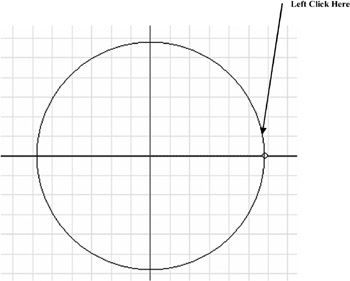
Move the cursor to the right and left click once as shown in Figure 3.
Figure 3
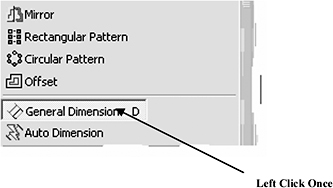
Move the cursor to the middle left portion of the screen and left click on General Dimension as shown in Figure 4.
Figure 4
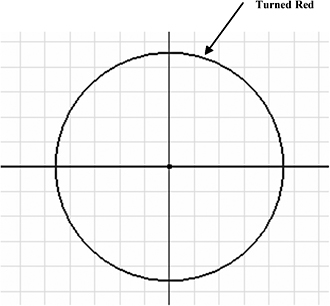
After selecting General Dimension move the cursor over the edge of the circle. It will turn red. Left click once. The dimension will be attached to the cursor as shown in Figure 5.
Figure 5
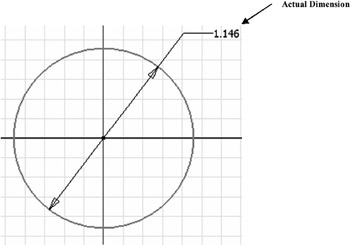
Move the cursor down. The actual dimension of the line will appear as shown in Figure 6.
Figure 6
Move the cursor to where the dimension will be placed and left click once. While the dimension is...