Applied Inventor

Learn to Project Geometry to a New Sketch

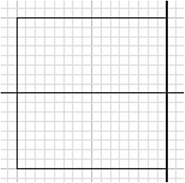
  1. Inventor will rotate the YZ plane to provide a perpendicular view as shown in Figure 28.


    Figure 28

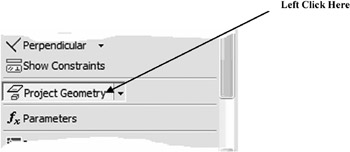
  2. Move the cursor to the lower left portion of the screen and left click on Project Geometry as shown in Figure 29.


    Figure 29

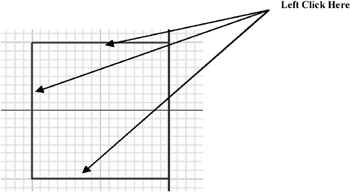
  3. Move the cursor over and left click on each side of the part as shown in Figure 30.


    Figure 30

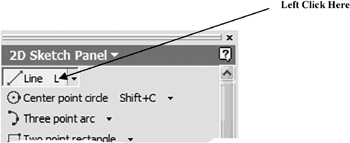
  4. Move the cursor to the upper left portion of the screen and left click on Line as shown in Figure 31.


    Figure 31

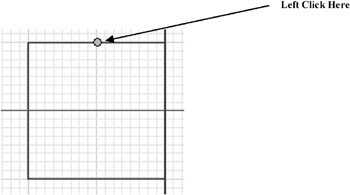
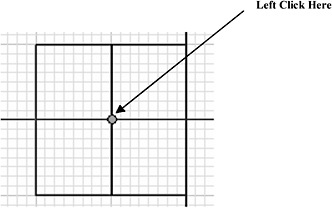
  5. Move the cursor to the midpoint of the upper line causing a green dot to appear and left click once as shown in Figure 32.


    Figure 32

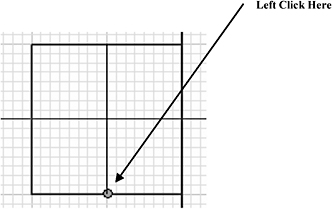
  6. Move the cursor down to the lower line causing a green dot to appear and left click as shown in Figure 33.


    Figure 33

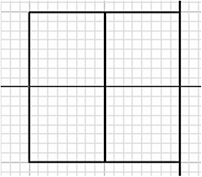
  7. Your screen should look similar to Figure 34.


    Figure 34

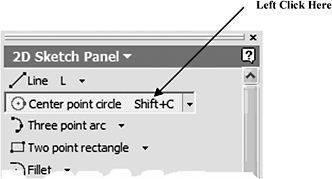
  8. Move the cursor to the upper left corner of the screen and left click on Center point circle as shown in Figure 35.


    Figure 35

  9. Move the cursor to the midpoint of the center line causing a green dot to appear and left click as shown in Figure 36.


    Figure 36

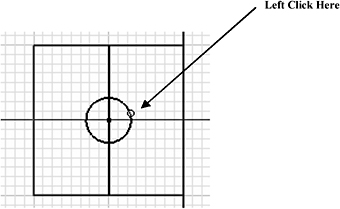
  10. Move the cursor out to the side and left click as shown in Figure 37.


    Figure 37

  11. Move the cursor to the middle left portion of the screen and left click...

UNLIMITED FREE
ACCESS
TO THE WORLD'S BEST IDEAS

SUBMIT
Already a GlobalSpec user? Log in.

This is embarrasing...

An error occurred while processing the form. Please try again in a few minutes.

Customize Your GlobalSpec Experience

Category: Computer Mice and Pointing Devices
Finish!
Privacy Policy

This is embarrasing...

An error occurred while processing the form. Please try again in a few minutes.