Applied Inventor

Chapter 4: Advanced Detail Drawing Procedures

Objectives:

  • Create an Auxiliary View using the Drawing Views Panel

  • Create a Section View using the Drawing Views Panel

  • Dimension views using the Drawing Annotation Panel

  • Create Text using the Drawing Annotation Panel

Chapter 4 includes instruction on how to create the drawings shown below.

  1. Start Inventor 10 by referring to Chapter 1 Getting Started .

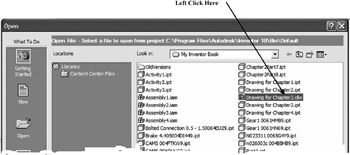
  2. After Inventor 10 is running, open the .idw file that was created in Chapter 3. Move the cursor to the upper left corner of the screen and left click on the Open icon as shown in Figure 1.


    Figure 1

  3. The Open dialog box will appear. Left click on the drawing that was created in Chapter 3 as shown in Figure 2.


    Figure 2

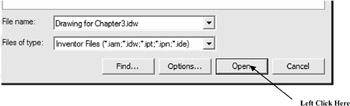
  4. Left Click on Open as shown in Figure 3.


    Figure 3

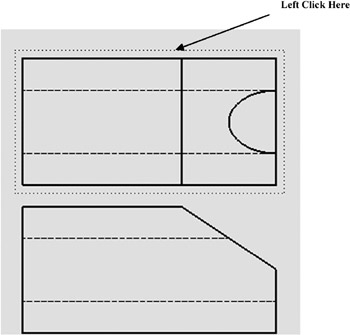
  5. After you have the .idw file open, move the views closer together to provide additional room on the drawing. Start by moving the cursor over the top view causing dots to appear around the view. After the dots appear, left click on the dots (holding the left mouse button down) and drag the view down closer to the front (base) view as shown in Figure 4.


    Figure 4

  6. Move the side view closer to the front (base) view. Start by moving the cursor over the side view causing dots to appear around the view. After the dots appear, left click on the dots (hold the left mouse button down)...

UNLIMITED FREE
ACCESS
TO THE WORLD'S BEST IDEAS

SUBMIT
Already a GlobalSpec user? Log in.

This is embarrasing...

An error occurred while processing the form. Please try again in a few minutes.

Customize Your GlobalSpec Experience

Category: Computer Mice and Pointing Devices
Finish!
Privacy Policy

This is embarrasing...

An error occurred while processing the form. Please try again in a few minutes.