Applied Inventor

Chapter 3: Learning To Create a Detail Drawing

Objectives:

  • Create a simple sketch using the Sketch Panel

  • Extrude a sketch into a solid using the Part Features Panel

  • Create an Orthographic view using the Drawing Views Panel

  • Create a Solid Model using the Edit Views command

Chapter 3 includes instruction on how to design the parts shown below.

  1. Start Inventor 10 by referring to Chapter 1 Getting Started .

  2. After Inventor 10 is running, begin a new sketch.

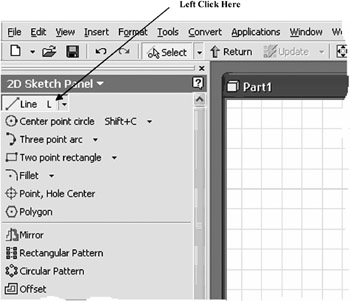
  3. Move the cursor to the upper left corner of the screen and left click on Line as shown in Figure 1.


    Figure 1

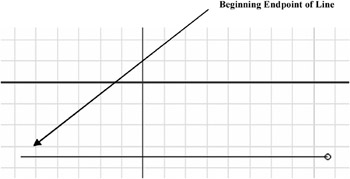
  4. Move the cursor somewhere in the lower left portion of the screen and left click once. This will be the beginning end point of a line as shown in Figure 2.


    Figure 2

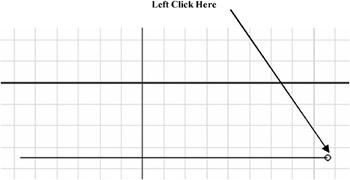
  5. Move the cursor to the right and left click once as shown in Figure 3.


    Figure 3

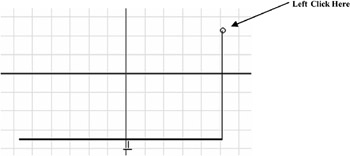
  6. Move the cursor upward and left click once as shown in Figure 4.


    Figure 4

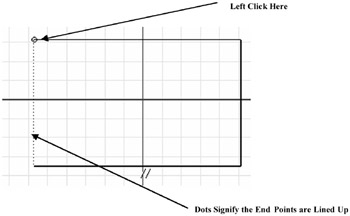
  7. Move the cursor to the left, wait for the dots to appear, then left click once as shown in Figure 5.


    Figure 5

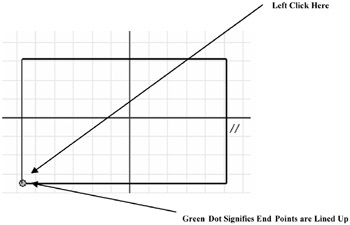
  8. Move the cursor back to the original starting end point. A green dot will appear. Left click once. Your screen should look similar to Figure 6.


    Figure 6

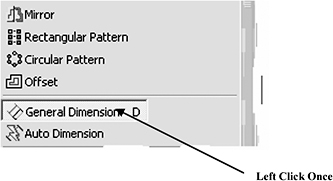
  9. Move the cursor to the middle left portion of the screen and left click on General Dimension as shown in Figure 7.


    Figure 7

  10. ...

UNLIMITED FREE
ACCESS
TO THE WORLD'S BEST IDEAS

SUBMIT
Already a GlobalSpec user? Log in.

This is embarrasing...

An error occurred while processing the form. Please try again in a few minutes.

Customize Your GlobalSpec Experience

Category: Computer Mice and Pointing Devices
Finish!
Privacy Policy

This is embarrasing...

An error occurred while processing the form. Please try again in a few minutes.