Applied Inventor

Learn to Use the Shell Command

  1. Move the cursor to the upper middle portion of the screen and left click on the Look At icon as shown in Figure 56.


    Figure 56

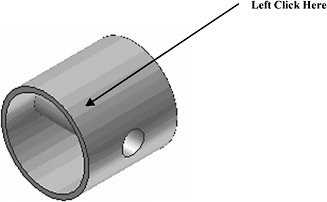
  2. Move the cursor to the lower surface of the part causing the inside and outside edges to turn red and left click as shown in Figure 57.


    Figure 57

  3. After both edges turn red, left click once. Inventor will rotate the part providing a perpendicular view of the inside as shown in Figure 58.


    Figure 58

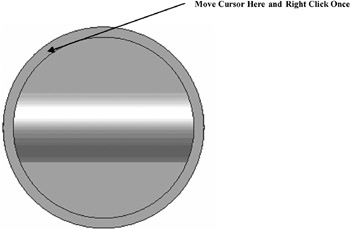
  4. Move the cursor over the same surface causing both the inside and outside lines to turn red. You may have to zoom in for Inventor to find both lines at the same time. Both lines must be red at the same time. After both lines are red at the same time, right click on the surface as shown in Figure 59. The surface will turn blue.


    Figure 59

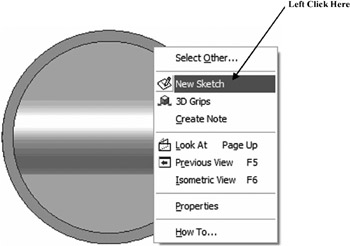
  5. A pop up menu will appear. Left click on New Sketch as shown in Figure 60.


    Figure 60

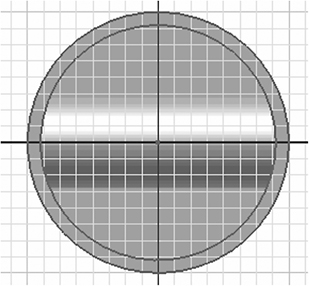
  6. Inventor will start a new sketch on the selected surface. Your screen should look similar to Figure 61.


    Figure 61

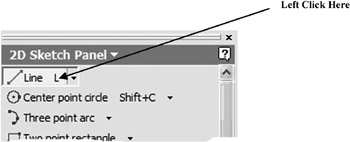
  7. Move the cursor to the upper left portion of the screen and left click on Line as shown in Figure 62.


    Figure 62

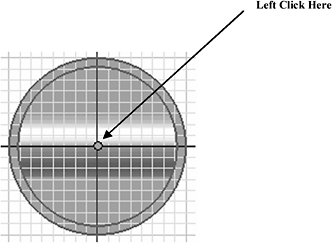
  8. Move the cursor to the center of the part causing a green dot to appear and left click as shown in Figure 63.


    Figure 63

UNLIMITED FREE
ACCESS
TO THE WORLD'S BEST IDEAS

SUBMIT
Already a GlobalSpec user? Log in.

This is embarrasing...

An error occurred while processing the form. Please try again in a few minutes.

Customize Your GlobalSpec Experience

Category: Computer Mice and Pointing Devices
Finish!
Privacy Policy

This is embarrasing...

An error occurred while processing the form. Please try again in a few minutes.