Applied Inventor

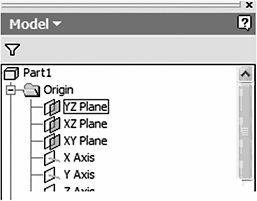
The part tree will expand. Move the cursor over the text YZ Plane causing a red box to appear around the text as shown in Figure 19.
Figure 19
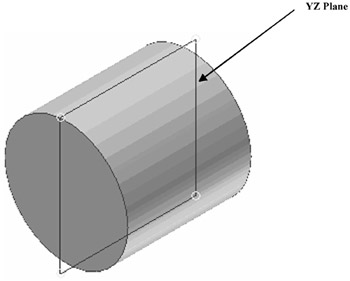
The YZ plane will become visible as shown in Figure 20.
Figure 20
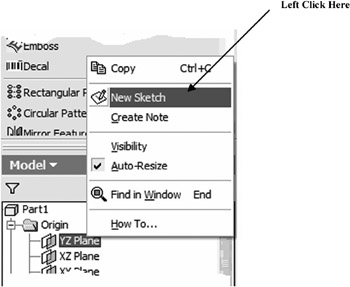
Right click on the text YZ Plane. A pop up menu will appear. Left click on New Sketch as shown in Figure 21.
Figure 21
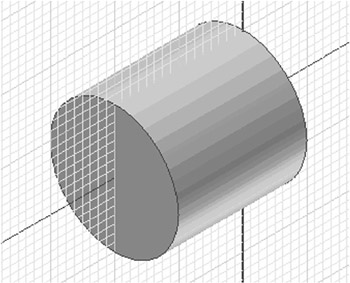
Your screen should look similar to Figure 22.
Figure 22
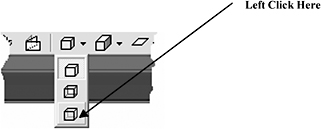
Move the cursor to the upper right portion of the screen and left click on the drop down arrow to the right of the Shaded Display icon. A drop down menu will appear. Left click on Wireframe Display as shown in Figure 23.
Figure 23
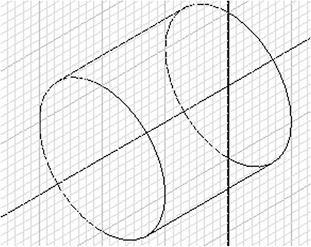
Your screen should look similar to Figure 24.
Figure 24
Move the cursor to the upper middle portion of the screen and left click on the Look At icon as shown in Figure 25.
Figure 25