AutoCAD 2002 ReferencePoint Suite

Use this ReferencePoint Suite for creating drawings, imaging and modeling, storing data with graphics, plotting, using dimensions and customizing AutoCAD 2002.
 TABLE OF CONTENTS
 You can print and plot drawings created in AutoCAD. You can also add text to an AutoCAD drawing and use dimensions to increase or decrease the size of the drawing.
This ReferencePoint describes the methods that you use to print and plot AutoCAD drawings, and add text to the drawings. In addition, it describes how to use dimensions in AutoCAD.
You can view a drawing on paper by plotting or printing the drawing. AutoCAD allows you to plot a group of drawings by using the Batch Plot Utility. Before plotting a drawing, you must create a layout of the drawing.
A layout allows you to visualize how the drawing will appear on paper. You can create a layout for a drawing by using the Layout Wizard.
The steps to create a layout by using the Layout wizard are:
Open the drawing for which you want to create a layout.
Select Tools-> Wizards-> Create Layout from the AutoCAD menu. The Create Layout-Begin window appears, as shown in Figure 4-1-1:
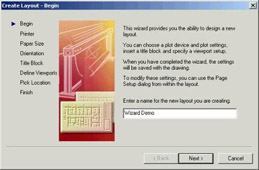
Figure 4-1-1: The Create Layout-Begin Window
Specify a name for the layout in the Enter a name for the new layout you are creating text box and click Next. The Create Layout-Printer window appears, as shown in Figure 4-1-2:
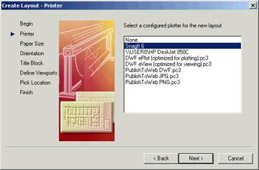
Figure 4-1-2: The Create Layout-Printer Window
Select a configured plotter for the layout from the displayed list of plotters and printers and click Next. The Create Layout-Paper Size window appears, as shown in Figure 4-1-3:
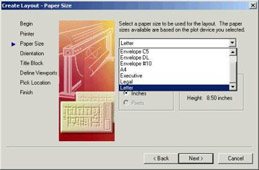
Figure...