AutoCAD 2002 ReferencePoint Suite

Use this ReferencePoint Suite for creating drawings, imaging and modeling, storing data with graphics, plotting, using dimensions and customizing AutoCAD 2002.
 TABLE OF CONTENTS
 Parts created in the Part module or assemblies created in the Assembly module can be represented as 2-D entities on a sheet by generating their drawing views. There are various drawing views that you can generate in Autodesk Inventor, such as base, projected, section, auxiliary, detail, and broken. It is also possible to sketch a drawing view in Autodesk Inventor.
You can also edit the drawing views by rotating, copying, moving, or deleting them. You can also modify the drawing views and add dimensions and text to them.
This ReferencePoint explains the various types of drawing views in Autodesk Inventor and how to generate them. It discusses how to edit and modify the drawing views and add dimensions and text to them.
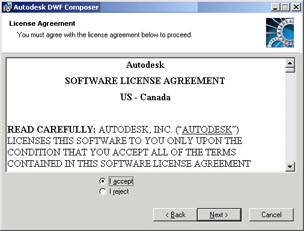
The drawing views are generated in the Drawing module of Autodesk Inventor. To invoke the Drawing module of Autodesk Inventor, double-click Standard.idw in the Default tab of the Open dialog box, as shown in Figure 5-1-1:
| Tip | You can also invoke the Drawing module using the other .idw files available... |