Final Cut Pro 3 Editing Workshop, Second Edition
Become an FCP software editing pro with this hands-on reference.
 TABLE OF CONTENTS
 Like the keying tools we looked at in the previous lesson, the purpose of the Matte tools is to remove or isolate part of the image without benefit of a keyed screen. The tools are powerful, though somewhat limiting and frustrating to work with. An important use of mattes, particularly garbage mattes, is as the preliminary step in keying. The matte removes the excess area, leaving you less to have to deal with and key out.
The lack of a true Bezier pen tool to draw mattes accurately, however, makes the matte tools difficult to work with. Let s start with the most complex of the collection, the Eight-point Garbage Matte.
This filter works similarly to FXScript DVE s 4-Point Garbage Matte except that it allows you to crudely draw shapes on the screen with up to eight separate points. Each point is animatable so the matte can change shape over time. Look at the controls in Figure 11.44.
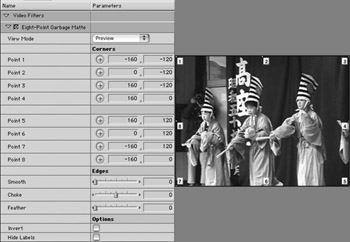
As you can see from the controls, there are eight points which can be placed anywhere on the screen using the Crosshairs button. Click in the crosshairs for Point 1 and click in the Canvas and the point will be placed there. It s as simple and as difficult as that.
| Note | Labels: These are only visible when the Canvas or Viewer is not in Image+Wireframe mode. When you re in Image+Wireframe, labels are... |