Mastering Autodesk VIZ 2007

Earlier in this chapter, you saw a sample of a bump map (Figure 8.5). It showed how a grayscale image creates the impression of a bumpy surface. Bump maps can also generate other types of surface textures.
In the following exercise, you ll modify the ground material to make the ground appear more like a rolling surface than a flat one.
Open the file you saved earlier as Mych08b.max or the ch08b file from the companion CD.
Click the Material Editor button on the Main toolbar to open the Material Editor.
In the Material Editor, click the Ground-Grass sample slot, with the triangles in the corner, in the top row.
Scroll down the Material parameters to the Maps rollout and open it.
Click and drag one of the None buttons onto the Grass2.jpg button that is currently shown in the bump channel. This will clear the bump map selection. Then click the Bump Map button that is now labeled None.
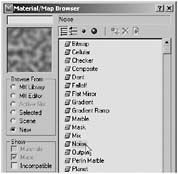
In the Material/Map Browser, make sure that the New radio button is selected in the Browse From group and then click Noise from the list. You ll see a sample of Noise in the upper left corner of the dialog box.

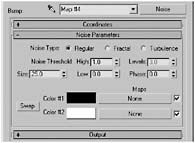
With Noise selected, click OK. The parameters for Noise appear in the Material Editor.

You may recall that a bump map uses varying shades of gray, or the grayscale equivalent when using a color bitmap, to determine the highs...