Project Planning & Scheduling Using Primavera Contractor Version 4.1: For the Construction Industry

Chapter 3: Starting Up and Navigation

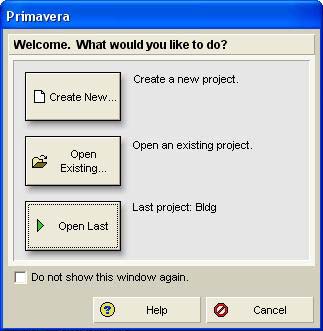
After clicking on the icon or menu item on your desktop to start Primavera Contractor, you will either be presented with the Welcome form or the software will open up directly in the Activities Workspace.

3.1 Welcome Form

If you are presented with the Welcome form.

  • takes you to the Create a New Project wizard; this topic is covered in the next chapter.

  • will allow you to select a project from the Open Project form.

  • will take you to the last project you opened.

  • Click on Do not show this window again and the next time you login you will be taken directly to the Activities Workspace.

To specify how you wish the software to start up select Edit, User Preferences , click on the Application tab and either check or uncheck Show the Welcome dialog at startup.

3.2 Opening a Project

Primavera Contractor only allows one project to be open at a time.

A project may be opened by selecting File, Open or by striking the keys Ctrl+ O to open the Open Project form. Select the required project from the list and click on the button, the project will then be opened in the Activity Workspace.

3.3 Navigating Around a Project

The sample database supplied with Primavera Contractor will be used to demonstrate how to navigate around the screens. Click on...

UNLIMITED FREE
ACCESS
TO THE WORLD'S BEST IDEAS

SUBMIT
Already a GlobalSpec user? Log in.

This is embarrasing...

An error occurred while processing the form. Please try again in a few minutes.

Customize Your GlobalSpec Experience

Category: Project Management Services
Finish!
Privacy Policy

This is embarrasing...

An error occurred while processing the form. Please try again in a few minutes.