Project Planning and Scheduling Using Primavera Version 4.1: For Engineering & Construction and Maintenance & Turnaround

18.5: Assigning and Removing Roles

18.5 Assigning and Removing Roles

To assign a Role to an activity:

  • Select the activity to be assigned the Role,

  • Select the Resources tab in the Activity Details form,

  • Click on the button to open the Assign Roles form,

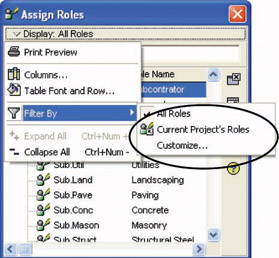
  • Use the Display:, Filter Bymenu to select either:

    • All Roles, which will display all Roles in the database,

    • Current Project s Roles. This option will only display Rolesthat have been assigned to this project, or

    • Customize, which opens a Filterform enabling the user to limit the number of displayed Roles by creating a filter.

  • Select one or more Roles to be assigned to an activity using the Ctrl-click function,

  • Then to assign a Role:

    • Click on the button, or

    • Double-click on one of the Roles.

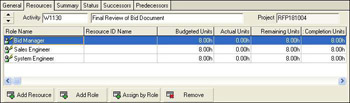
To achieve the picture below you may need to format the columns in the Resources Details form.

At this point, the Roles hours and costs may be edited as required.

Costs may be assigned to Roles but these costs are not calculated, as a Role Rate is notavailable from the database.

To remove a Role:

  • Select the Role, and

  • Click on the button.

UNLIMITED FREE
ACCESS
TO THE WORLD'S BEST IDEAS

SUBMIT
Already a GlobalSpec user? Log in.

This is embarrasing...

An error occurred while processing the form. Please try again in a few minutes.

Customize Your GlobalSpec Experience

Category: Construction Management Services
Finish!
Privacy Policy

This is embarrasing...

An error occurred while processing the form. Please try again in a few minutes.