Project Planning and Scheduling Using Primavera Version 4.1: For Engineering & Construction and Maintenance & Turnaround

After clicking on the icon or menu item on your desktop to start Primavera Version 4.1, you will be presented with the Login form.
Clicking on the
icon under Database will open the Edit Database Connections form where you may select an alternative database to open:


Select the required database,
Click the
icon,
Enter your Login Name and Password, which are case sensitive, and then
Click
to open the selected database.
To specify how you wish the software to start up, after the software has started go to Edit, User Preferences , click on the A pplication tab.
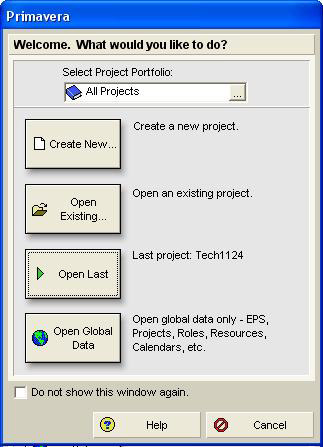
You may then be presented with the Welcome form.
Select Project Portfolio which will display only those projects assigned to the selected portfolio; this is in effect a filter that operates on projects.
takes you to the Create a New Project wizard; this topic is covered in the next chapter.
will allow you to select a project from the selected portfolio.
will take you to the last project you opened.
will take you to the location specified in the A pplication tab specified in Application Starts Up in the Edit, User Preferences form.
Click on Do not show this window again and the next time you login you will be taken directly to the location nominated in the User Preferences , A pplication tab.

To open the Home Workspace click on the
button on the Navigation toolbar; a screen will...