The Focal Easy Guide to Adobe Encore DVD 2.0

Replacing Text in Menu Objects

All of the Encore menu templates that are included in the Library have text placeholders as part of the design of the menu. These placeholders contain generic text that must be changed to fit your project. This is the first modification that we will make to our project menu. Use the Text tool to make the changes. To replace the text in the placeholders for buttons and graphics:

  1. Select the Text tool (T) from the Toolbar.

  2. Position your cursor over the text in the Menu viewer that you wish to replace. It will change to an I-beam.

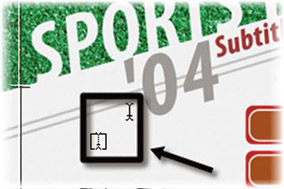
  3. Pay close attention to the shape of the cursor. If a solid outline of a square appears around a dotted I-beam, it means that you are not hovering over existing text. Move the cursor precisely over the existing text until the I-beam is solid and not surrounded by the outline.

  4. Once the cursor shape is a solid I-beam without the outline, drag the cursor over the text you wish to replace.

  5. Type in new text.

  6. To exit the text-editing mode, press the (Esc) key or select a different tool.


    The different text cursors

UNLIMITED FREE
ACCESS
TO THE WORLD'S BEST IDEAS

SUBMIT
Already a GlobalSpec user? Log in.

This is embarrasing...

An error occurred while processing the form. Please try again in a few minutes.

Customize Your GlobalSpec Experience

Category: Optical Character Recognition Software (OCR)
Finish!
Privacy Policy

This is embarrasing...

An error occurred while processing the form. Please try again in a few minutes.