The Focal Easy Guide to Adobe Encore DVD 2.0

Duplicating Menus and Menu Objects

Our flowchart tells us that we need another menu to give the audience access to all of our program content. We could create a whole new menu from the template again, but since we ve already modified our first menu, it is easier and faster to duplicate our modified menu and then make changes to that. You will find this to be true in almost every project. To duplicate a menu:


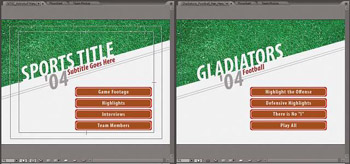
The original menu template and the text changes in the new menu
  1. In the Project panel, select the menu you want to duplicate.

  2. Choose Edit ? Duplicate (Ctrl + D).

Now we ve got two menus. One will be the Main Menu and the other will be the Extras Menu. According to our flowchart, that s all of the menus that we ll need. Let s look at the Main Menu first. We ve customized it some by changing the text placeholders, but now we need to create a way to let the audience navigate to the Extras Menu.

When you want to add stuff to a menu and yet stay within the look and feel of the menu template, you can either add items from the Library that support the design of the template or you can duplicate existing menu objects and then modify those. We ll duplicate a text object to make a new menu button that will allow navigation to the Extras Menu.

To duplicate a menu object, select the object you want to duplicate in the Layers...

UNLIMITED FREE
ACCESS
TO THE WORLD'S BEST IDEAS

SUBMIT
Already a GlobalSpec user? Log in.

This is embarrasing...

An error occurred while processing the form. Please try again in a few minutes.

Customize Your GlobalSpec Experience

Category: Remote Control Software
Finish!
Privacy Policy

This is embarrasing...

An error occurred while processing the form. Please try again in a few minutes.