The Focal Easy Guide to Adobe Encore DVD 2.0

The quickest way to create menus for your project is to start with a menu template from the Encore Library. With one of Encore s menus as a foundation, you can easily add, delete and rearrange objects to fit the scope of your project. The Encore Library includes a large collection of complete menus, for both Standard and Widescreen projects.
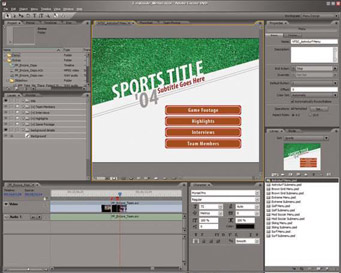
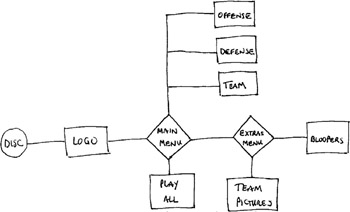
| Note | The Educational and Tryout versions of Adobe Encore DVD 2.0 do not include as much Library content as the full Retail version. Videogears.com has some free and some inexpensive menu resources that can help you fill the content gap between these versions. The Menu Design workspace The Project Flowchart |
For our project, we will use a Standard menu template that is included in the Encore Library. The example flowchart from The Project: Planning will guide us as we modify and duplicate the template.
To create a menu using a template from the Library:
Select the Library panel.
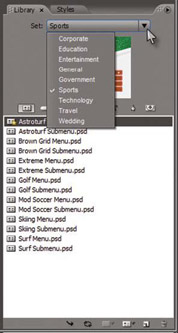
Choose a Library Set from the drop-down list at the top of the panel.
The Library Set drop-down list and the Library panel filtered to show only menus
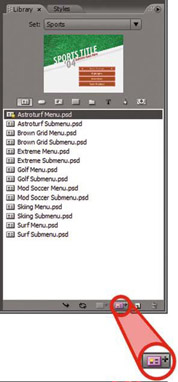
The New Menu button
Click on the Menu button at the top of the list area. This limits the display of items in the list to complete menus only.
Highlight a menu in the list and then click on the New Menu button at the bottom of the panel.
| Note | Creating a menu for a Widescreen project is as simple as choosing a... |