Applied SolidWorks
Providing step-by-step instructions along with numerous illustrations, this book begins at a very basic level and ends at a fairly advanced level so that users can learn Solidworks on their own with little or no outside help.
 TABLE OF CONTENTS
 Left clicking on the green checkmark will create a solid from the sketch. Your screen should look similar to Figure 80.
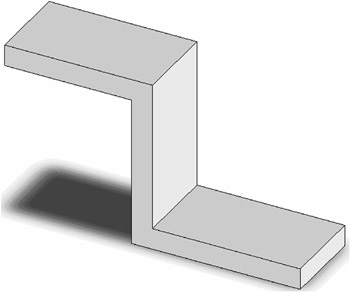
Figure 80
Move the cursor to the upper middle portion of the screen and left click on Fillet as shown in Figure 81.
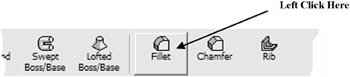
Figure 81
The menu at the left will change. Enter .5 for the radius and select Full Preview as shown in Figure 82.
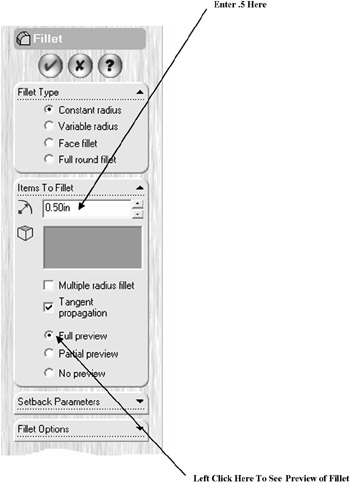
Figure 82
Move the cursor over the lower front edge causing it to turn red and left click once as shown in Figure 83.
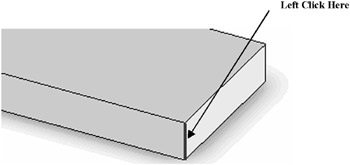
Figure 83
Notice the yellow lines illustrating a preview of the fillet as shown in Figure 84.
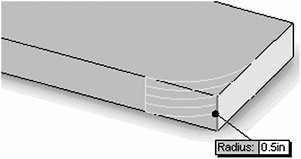
Figure 84
Move the cursor over the upper front edge causing it to turn red and left click once as shown in Figure 85.
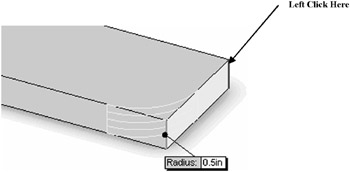
Figure 85
Notice the yellow lines illustrating a preview of the fillet as shown in Figure 86.
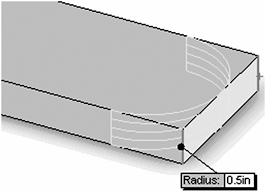
Figure 86
Left click on the two upper remaining edges. You may have to use the rotate command to select the upper edge that is not visible.
Move the cursor to the upper middle portion of the screen and left click on the Rotate icon as shown in Figure 87.

Figure 87
Left click on the left portion of the part (holding the left mouse button down). Drag the cursor to the right allowing access to the upper right corner of...