Numerical Analysis Using MATLAB and Spreadsheets
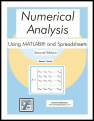
This concise text provides complete, clear, and detailed explanations of the principal numerical analysis methods and well known functions used in science and engineering.
 TABLE OF CONTENTS
 This chapter is an introduction of the basic MATLAB commands and functions, procedures for naming and saving the user generated files, comment lines, access to MATLAB's Editor/ Debugger, finding the roots of a polynomial, and making plots. Several examples are provided with detailed explanations.
To distinguish the screen displays from the user commands, important terms and MATLAB functions, we will use the following conventions:
Click: Click the left button of the mouse
Courier Font: Screen displays
Helvetica Font: User inputs at MATLAB's command window prompt EDU>> [*]
Helvetica Bold: MATLAB functions
Times Bold Italic: Important terms and facts, notes, and file names
When we first start MATLAB, we see the toolbar on top of the command screen and the prompt EDU>>. This prompt is displayed also after execution of a command; MATLAB now waits for a new command from the user. We can use the Editor/Debugger to write our program, save it, and return to the command screen to execute the program as explained below.
To use the Editor/Debugger:
From the File menu on the toolbar, we choose New and click on M-File. This takes us to the Editor Window where we can type our code (list of statements) for a new file, or open a previously saved file. We must save our program with a file name which starts with a letter. Important! MATLAB is case sensitive, that is, it distinguishes...