After Effects on the Spot: Time-Saving Tips & Shortcuts From the Pros
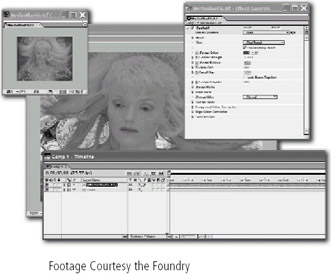
When Adobe decided to include the Keylight plug-in with After Effects 6, the program's keying capabilities took a huge leap forward. Keylight won an Academy Award for technical excellence, and once you've used it, you'll understand why.

In past versions of After Effects, we achieved professional level keying by using the Color Difference Key plug-in for the bulk of the work and a number of other support plug-ins to help clean up edges and color-correct the final composite. Keylight is a one-stop shop. It can pull a matte, clean up edges, despill and color-correct, all in one interface.
In AE 6, chroma keying is (or should be) the same thing as using the Keylight plug-in, so most of the tips in this chapter relate to Keylight.
Are you trying to decide whether to use a blue or green or red or whatever screen? Go with a color that is the opposite of the foreground color. Blue or green backgrounds are often used because there is very little of those colors in human skin. If you were shooting a product that has a lot of blue and green in it though, you might be better off using a red screen.
Make sure that the screen is evenly lit, and that the foreground person or object is far enough away from it (with its own lighting) so that there is minimal color and shadow spilling (and reflecting) between foreground and background.
When lighting the foreground (the object or...