After Effects on the Spot: Time-Saving Tips & Shortcuts From the Pros
If you're a designer or animator, and you've thought about tiptoeing into the world of programming, we'd like to introduce you to Javascript. Javascript has become the unofficial language of graphics applications, including Photoshop, Illustrator, Flash, Web browsers, and (of course) After Effects.
The good news is that you don't have to master Javascript to write AE Expressions. You just need to learn a little bit, and then you can learn more if you'd like to delve really deeply into the language. But with just a few Javascript phrases, you can boost your animations to a new level.
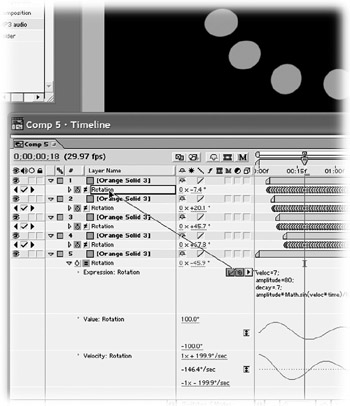
Expressions are mostly used when keyframing would be difficult, like when you want to add a huge amount of random motion to a layer. They can also link properties together, so that one property controls another.
If you're intrigued, read on


Expressions are small Javascript programs that can control layer properties (an alternative to keyframing). To create simple expressions, you don't need to know how to program Javascript.
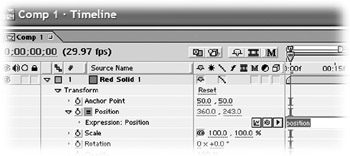
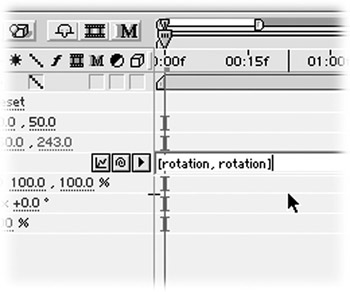
To add an expression to any property, reveal it in the Timeline, then Option click (Alt click) the property's stopwatch. Add expressions to effect properties by Option clicking (Alt clicking) their stopwatches in the Effect Control palette. To delete expressions, Option click (Alt click) stopwatches a second time. To temporarily disable an expression, click the equal-sign button that appears to the left of the stopwatch for any property that's controlled by an expression.

When you finish creating...