After Effects on the Spot: Time-Saving Tips & Shortcuts From the Pros
Chapter 12: Masks and Mattes Using Layers to Hide (and Add)

Overview

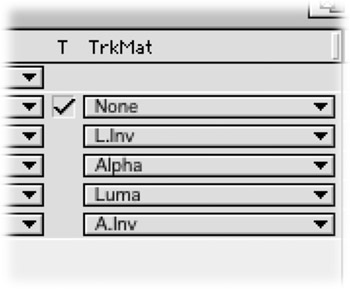
Vastly underused and never to be underestimated, using Masks and Mattes is the key to successful compositing. This chapter presents tips on tried-and-true techniques and also on some of the great new adds like the Auto Trace feature. Hide parts of footage you don't like or use the luminance channel of a layer to affect the alpha channel of another layer.

You can create masks in AE or import them from programs like Photoshop and Illustrator. Masks can be used as motion paths and can be applied to effects with position data. We'll show you how to manage one or multiple masks per layer efficiently and effortlessly (well, almost effortlessly).

Using Mattes means faster compositing. You'll get effects that you just can't achieve any other way.

Masks and Mattes rock!

Creating Masks Within AE

To create a mask:

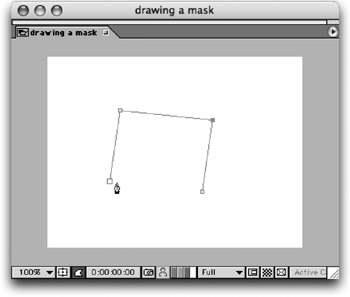
  1. Select any layer, or create a new layer by pressing Cmd+Y (Ctrl+Y).

  2. Click on the Pen Tool in the Tools Palette.

  3. Click anywhere in the composition window to make a vertex point.

  4. Continue clicking to add points.

  5. Return to the first point you made to close the mask. You'll see a circle icon appear next to your Pen Tool to indicate you are closing the mask.

Tools of the Trade

When you click quickly on a layer and make a vertex, you make a corner point vertex. If you click and drag one way or another, the vertex point becomes a smooth point, otherwise known as a Bezier Vertex Point. Bezier...

UNLIMITED FREE
ACCESS
TO THE WORLD'S BEST IDEAS

SUBMIT
Already a GlobalSpec user? Log in.

This is embarrasing...

An error occurred while processing the form. Please try again in a few minutes.

Customize Your GlobalSpec Experience

Category: Mask and Stencil Fabrication Services
Finish!
Privacy Policy

This is embarrasing...

An error occurred while processing the form. Please try again in a few minutes.