After Effects on the Spot: Time-Saving Tips & Shortcuts From the Pros
Chapter 5: Type-Oh Great Titles with AE's new Text Engine

Overview

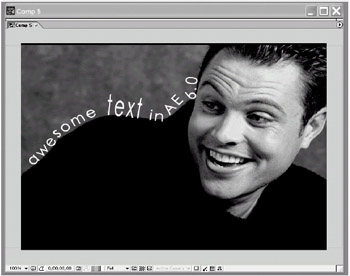
When we got our copies of AE 6, the single feature that made us most impatient to rip the shrink-wrap off the package was the new Type Tool. Yes, you can now grab this tool, that sits innocently in the Tool Palette, click in the Comp Window and type-just like in Photoshop or Illustrator.

After Effects used to be weak in the text department. To achieve complex text-based animation, especially if we needed to animate text character-by-character, we turned to third-party plugins like Boris Graffiti or Digital Anarchy's Text Anarchy suite. Now we only need After Effects, which is now, in our opinion, the most advanced text-animation tool on the market.

But with power comes complexity. The rules for animating text are different from any other sort of animation in After Effects. This chapter will help you sort out your Ps from your Qs, and by the time you're done reading it, you'll think text is as easy as ABC.

Adding Text to a Comp is Easy!

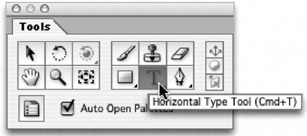
Press Cmd+T (Ctrl+T) to select the Horizontal Type tool. (Repeat this shortcut to toggle between the Horizontal Type tool and the Vertical Type tool).

Click anywhere in the Comp window and start typing.

When you finish, press the Enter key on the numeric keypad to exit typing mode. Note that pressing Return (Enter) on the main keyboard won't finalize your type. Instead, it will drop your type cursor down to the next line, just like in a word processor. If you're working...

UNLIMITED FREE
ACCESS
TO THE WORLD'S BEST IDEAS

SUBMIT
Already a GlobalSpec user? Log in.

This is embarrasing...

An error occurred while processing the form. Please try again in a few minutes.

Customize Your GlobalSpec Experience

Category: Optical Character Recognition Software (OCR)
Finish!
Privacy Policy

This is embarrasing...

An error occurred while processing the form. Please try again in a few minutes.