After Effects on the Spot: Time-Saving Tips & Shortcuts From the Pros
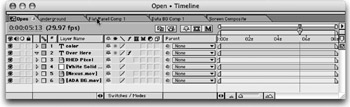
The Timeline is where all of the action happens. It's the window that gets your art from start to finish. The more you know about its nuances, the better your results will be.

In this chapter, we'll show you how to get the most out of your timeline, how to take advantage of its power, and how to do some tricks that will make well doing tricks easier.
The timeline in AE has always been flexible. And with After Effects 6.5, it has become a contortionist, bending over backward to make your life easier. Once you get comfortable with pre-composing, editing, resizing, and well, you get the picture you'll be the envy of designers everywhere.
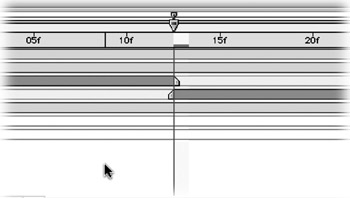
Often you will need to segment a layer. This might be for compositing purposes, such as making an object orbit around another. Other times it will make certain effects, such as Shatter. easier to control.
To split a layer, use the following steps:

To split a layer, place the position indicator at the desired time.
Select the layer to be split by highlighting it.
Press Cmd+Shift+D (Ctrl+Shift+D).
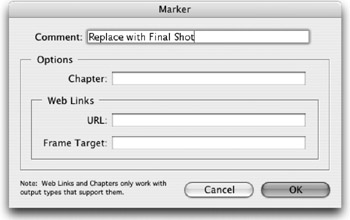
Layer Markers can come in handy when leaving notes to yourself within a composition. You can save time by adding the marker and calling up its dialog box with one key combination.

To add a Layer Marker with dialog, press Option+* (the multiply symbol) on the numeric keypad.
You can now add a comment, chapter marker, or Web...