Learning Mastercam Mill Step by Step

5-5: Backplotting Hole Machining Operations

5-5 Backplotting Hole Machining Operations

Previously generated toolpaths are contained in the job's NCI file(*.NCI) and can be played back and visually checked for correctness by selecting the Backplot module from the Operations Manager dialog box. The Operations manager is a powerful feature that enables the user to see, backplot, verify and edit the job's machining operations.

Example 5-3:

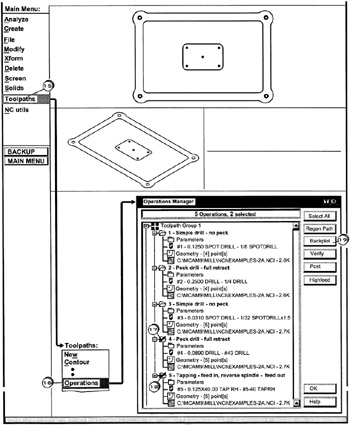
Use the Backplot function in the Operations Manager dialog box to display the drilling tool paths created in Example 5-2.

A) BACKPLOTTING THE TOOLPATHS FOR ALL OPERATIONS

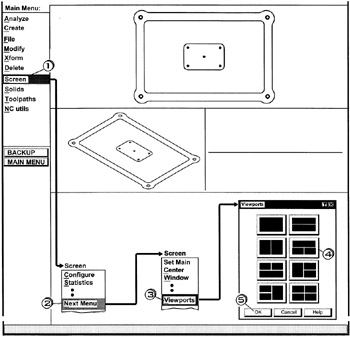
  • Click [1] Screen

  • Click [2] Next Menu

  • Click [3] viewports

  • Click [4] the desired viewport configuration

  • Click [5] the OK button

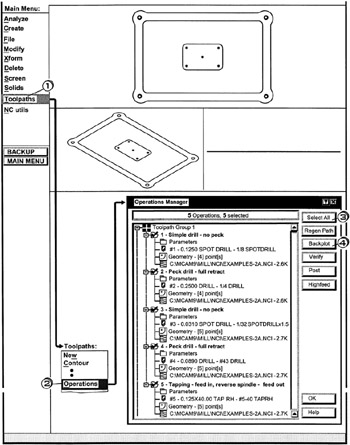
  • Click [1] Toolpaths

  • Click [2] Operations

  • Click [3] the Select All button

  • Click [4] the Backplot button

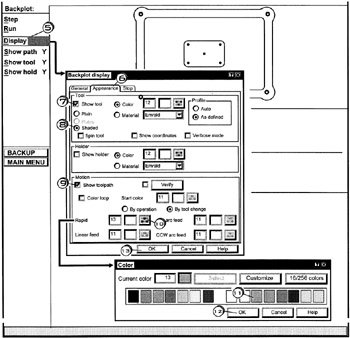
  • Click [5] Display

  • Click [6] the Appearance tab

  • Click [7] such that a ckeck appears in Show tool

  • Click [8] the Shaded radio button

  • Click [9] such that a ckeck appears in Show toolpath

  • Click [10] the Rapid color button

  • Click [11] the Magenta color

  • Click [12] the OK button

  • Click [13] the OK button

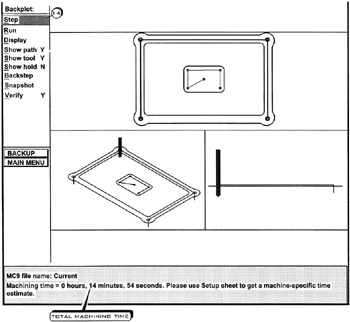
  • Repeatedly Click [14] step to see a step by step animation of tool movement Mastercam will display the total machining time for the operations selected

B) BAGKPLOTTING THE TOOLPATHS FOR SELECTED OPERATIONS

  • Click [15] Toolpaths

  • Click [16] Operations

  • Click [17] on the first operation

UNLIMITED FREE
ACCESS
TO THE WORLD'S BEST IDEAS

SUBMIT
Already a GlobalSpec user? Log in.

This is embarrasing...

An error occurred while processing the form. Please try again in a few minutes.

Customize Your GlobalSpec Experience

Category: Torque Wrenches
Finish!
Privacy Policy

This is embarrasing...

An error occurred while processing the form. Please try again in a few minutes.