Learning Mastercam Mill Step by Step

5-10: Editing Drill Tool Paths

5-10 Editing Drill Tool Paths

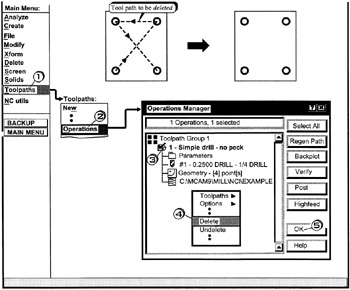
DELETING AN EXISTING DRILL TOOL PATH

Example 5-7:

Delete the existing drill tool path shown below

  • Click [1] Toolpaths

  • Click [2] Operations

  • Click [3] on the file folder of the operation to delete such that a check appears

  • Right Click move the cursor down to Delete; Click [4]

  • Click [5] the OK button

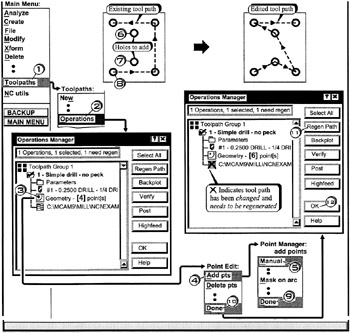
ADDING DRILL POINTS TO AN EKISTING DRILL TOOL PATH

Example 5-8:

Add the additional drill points to the existing drill tool path shown below

  • Click [1] Toolpaths

  • Click[2] Operations

  • Click [3] the Geometry icon

  • Click[4] Add pts

  • Click [5] Manual

    Select points. Press when done

  • Click [6] [7] the pts to be added;

    Press the Esc key when done

    Select sorting start point

  • Click [8] new drill tool path start point

  • Click[9] Done

  • Click[10] Done

  • Click [11] Regen Path

  • Click [12] OK

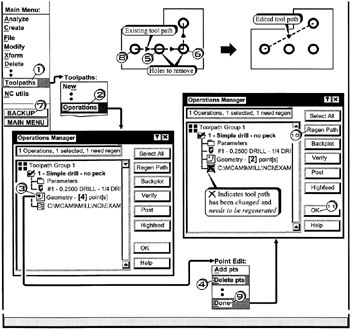
DELETING POINTS FROM AN EXISTING DRILL TOOL PATH

Example 5-9:

Remove the drill points from the existing drill tool path shown below

  • Click [1] Toolpaths

  • Click [2] Operations

  • Click[3] the Geometry icon

  • Click[4] Deleta pts

    Select points to delete

  • Click [5] [6] the pts to be deleted;

  • Click[7] BACKUP

    Select sorting start point

  • Click [8] new drill tool path start point

  • Click [9] Done .

  • Click [10] egen Path

  • Click [11] OK

UNLIMITED FREE
ACCESS
TO THE WORLD'S BEST IDEAS

SUBMIT
Already a GlobalSpec user? Log in.

This is embarrasing...

An error occurred while processing the form. Please try again in a few minutes.

Customize Your GlobalSpec Experience

Category: Measurement While Drilling (MWD) Systems
Finish!
Privacy Policy

This is embarrasing...

An error occurred while processing the form. Please try again in a few minutes.