Learning Mastercam Mill Step by Step

Chapter 4: Additional Tools for Cad

4-1 Chapter Objectives

After completing this chapter you will be able to:

  1. Use the Dimension command to check the dimensional correctness of CAD models.

  2. Explain how to execute import/export operations between Mastercam and other CAD packages such as AutoCAD.

4-2 Checking the CAD Model for Dimensional Correctness

On CD

It is highly recommended to check the CAD model for correctness of size and the location of geometric features such as holes. If any dimensional errors are found, the operator needs to quickly make adjustments in size and location before applying machining toolpaths. Mastercam features the Dimension command for this purpose.

Example 4-1:

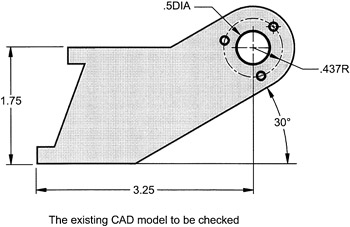
Verify that the existing CAD model has the dimensions as shown in Figure 4-1


Figure 4-1

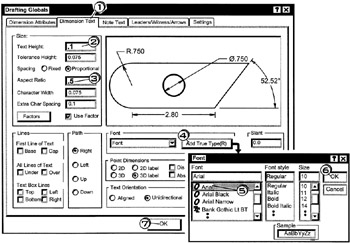
A) SET THE DESIRED GLOBAL DIMENSIONING PARAMETERS

  • Press Alt + D

  • Click [1] the Dimension Text tab

  • Click [2] in the text height box and enter .1

  • Click [3] in the Aspect Ratio box and enter .5

  • Click [4] the Add True Type(R) button

  • Click [5] the Arial font

  • Click [6] the OK button

  • Click [7] the OK button

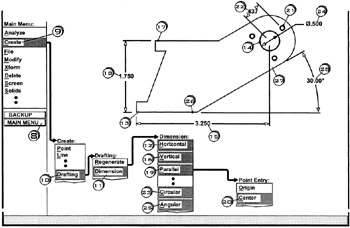
B) CHECK THE APPROPRIATE DIMENSIONS

  • Click [8] the MAIN MENU button

  • Click [9] Create

  • Click [10] Drafting

  • Click [11] Dimension

  • Click [12] Horizontal

  • Click [13] near the end of the line [14] on the arc [15] the text loc

  • Press Esc to cancel the operation

  • Click [16] V

UNLIMITED FREE
ACCESS
TO THE WORLD'S BEST IDEAS

SUBMIT
Already a GlobalSpec user? Log in.

This is embarrasing...

An error occurred while processing the form. Please try again in a few minutes.

Customize Your GlobalSpec Experience

Category: Computer-aided Design and Computer-aided Manufacturing Software (CAD/CAM)
Finish!
Privacy Policy

This is embarrasing...

An error occurred while processing the form. Please try again in a few minutes.