Object-Oriented Programming for Windows 95 and NT
A beginner to intermediate level guide to object-oriented programming for the Windows 95 and NT platforms.
 TABLE OF CONTENTS
 So far, the user's options for making entries have ranged from choosing from a simple list of radio buttons to entering a value in an edit box. However, in many cases you want to provide the user with a fixed list of options from which to select. Neither the radio buttons nor the text box are really suitable. A large list of radio buttons becomes difficult to manage and is impractical for very large lists. Deciding which item has been selected requires a considerable amount of code. And having to type the choice makes the process long-winded for the user and is prone to error.
The answer is to use a list box (Figure 7.27). A simple list box consists of a rectangle in which a list of text items is shown. If the box is not wide enough for some of the items, then only part of the text will be visible. If there are more items that can be fitted in the list, a vertical scroll bar is added automatically. Unless specified otherwise, Windows will always amend the height of the list box so that a whole number of items are displayed.
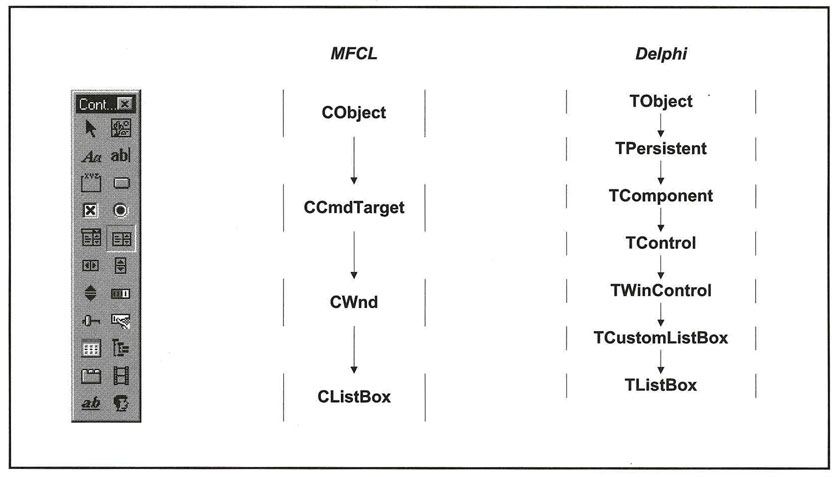
List boxes are useful in any situation where the available options can be determined by the program. For example, in a database program you can use a list box for choosing a record by listing the key fields. Note, however, that combo boxes are used more frequently in applications.