Object-Oriented Programming for Windows 95 and NT
A beginner to intermediate level guide to object-oriented programming for the Windows 95 and NT platforms.
 TABLE OF CONTENTS
 After adding controls you can complete the dialog box by adding access keys and deciding the tab order, as described in Chapter 6.
In Visual C++, you can check on the way in which the dialog box will work with the Developer Studio Resource Test option (press CTRL-T).
For Delphi, a dialog box can be run by pressing function key F9 (providing it is the main window for the application); for Visual Basic, press F5. In both these environments you can only test a dialog box that is not the main window by linking it into the main window in some way (see Chapter 9).
In all cases, the box appears on screen exactly as it would when run as part of an application. The edit boxes can be filled in, radio buttons selected and options chosen from combo boxes (Figure 7.40).
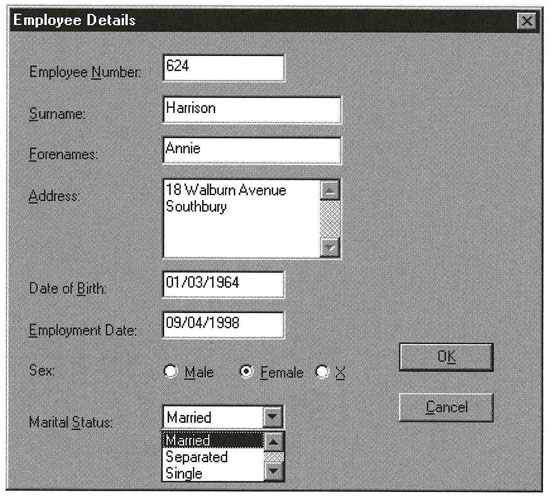
You can test the entry of values, the use of the TAB key and access keys, and the operation of the command buttons. To end the test:
In Developer Studio, clicking on either OK or Cancel, pressing ENTER or ESC, or clicking on Close in the control-menu box, ends the test.
In Delphi and Visual Basic, the OK and Cancel buttons do not yet have any code attached, so you must use the control-menu box or ALT-F4 to end the test.