Object-Oriented Programming for Windows 95 and NT
A beginner to intermediate level guide to object-oriented programming for the Windows 95 and NT platforms.
 TABLE OF CONTENTS
 Windows frequently have scroll bars on the right or at the bottom to allow the user to scroll to parts of the window that are not currently visible. Similarly, edit controls that allow for more text than can be shown in the control have scroll bars and long lists result in scroll bars being added to list and combo boxes. All these scroll bars have a fixed position and size; the programmer may be able to decide whether or not they are displayed but frequently they are added automatically when the window or control is created. These scroll bars are all part of some control or window; they are not separate controls in their own right.
Sometimes it is useful to add an independent scroll bar, a separate control that is not connected to any window, edit box or list (Figure 7.37). For example, the mouse double-click speed is adjusted in the Windows Control Panel using a scroll bar. The scroll bar provides a pictorial method of entering a value in a range and is often easier for the user than an edit box. The use of a scroll bar also reduces the amount of error checking that is needed; using a scroll bar, the user cannot enter a value that is outside the allowed range.
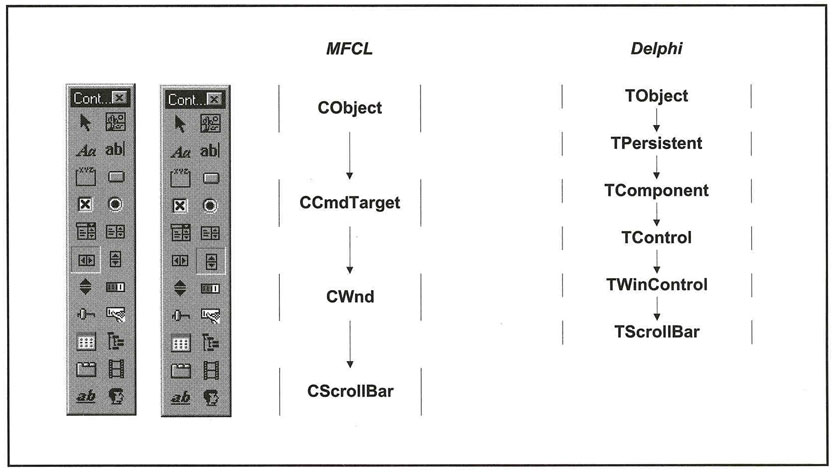
A scroll bar consists of a long thin box, with an arrow button at each end. Between the buttons is a "gray" area, in which is a