Animating with Microstation
For architects and engineers who deal with 3D rendering and animations, this text covers every aspect of animating in detail, including cameras, paths, actors, motion blurs, global and source lighting, and targets.
 TABLE OF CONTENTS
 Before creating the script, it is sensible to have some idea of where the camera is at different time intervals as it travels along the B-spline path you created earlier. To do this requires a few adjustment to the Animation Producer preview settings.
Continuing with the Longbeach.dgn model, open View 7.
Attach the saved view check path to View 7.
The saved view is a Top view, with the levels for camera path, fountain, high-rise and lighthouse geometry on.
Disable the camera in the Animation Producer script by rightclicking on the Type Camera item and selecting Disable from the list of options.
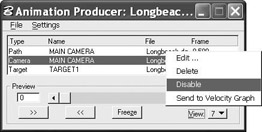
| Note | Disabled script entries appear in red. |
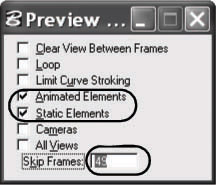
From the Animation Producer, select Settings > Preview.
The Preview Settings dialog box opens.
Turn off all options except Animated Elements and Static Elements and set Skip Frames to 49.
 In the Animation Producer dialog, change View to 7 and click Play.
The script is previewed and the camera graphic appears along the path every 50 frames because the view is not being cleared between frames.
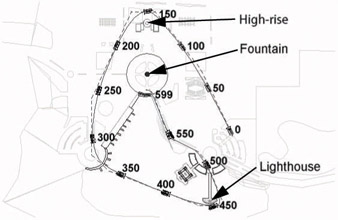
| Note | The camera positions are evenly spaced because you are using constant velocity. If you use a velocity other than constant, the spacing would be completely different and this method of determining camera locations would be of even greater importance. |