Animating with Microstation
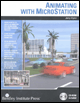
For architects and engineers who deal with 3D rendering and animations, this text covers every aspect of animating in detail, including cameras, paths, actors, motion blurs, global and source lighting, and targets.
 TABLE OF CONTENTS
 Now that you have modified the original script, you can preview the animation to see the effects of having the target and camera both in motion.
Continuing with Longbeach.dgn, from the Animation Producer dialog box, select Settings > Preview to open the Preview Settings dialog box.
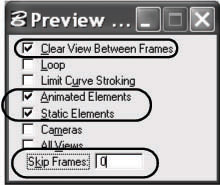
Turn on Clear View Between Frames, Animated Elements, and Static Elements. Set Skip Frames to 1 so that it plays every frame.
| Note | On a really fast system with very fast OpenGL graphics hardware, you may not need to set Skip Frames to 1. A setting of zero would preview every frame and might work best if your system falls into this category. |
 From the Animation Producer dialog box, set View to 8 and click Play to preview the movie in View 8.
The animation looks much better, but the timing seems a little off at the lighthouse. The focus stayed on the lighthouse and the camera turned around and looked back as the lighthouse was being passed by the camera. A simple edit of the script can correct this problem.
From the Animation Producer double-click the Type keyframe LIGHTHOUSE at frame 440.
The Edit KeyFrame dialog appears.
Change the Frame Number from 440 to 445.
This holds the focus on the lighthouse a little longer and prevents the camera from turning around as it passes.
In the Preview Settings dialog box, only turn on Animated Elements and set Skip Frames to