Animating with Microstation
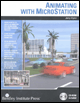
For architects and engineers who deal with 3D rendering and animations, this text covers every aspect of animating in detail, including cameras, paths, actors, motion blurs, global and source lighting, and targets.
 TABLE OF CONTENTS
 Now that you have the script ready to preview, depending on the performance of your system and graphic card you may need to make a few adjustments to further improve the preview performance.
Continue with Longbeach.dgn.
Open View 8.
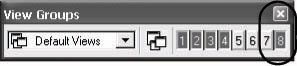
View 8 has been saved with the level containing the trees turned off. This provides a smoother preview with less geometry to update.
| Tip | To make the preview play smoother, you can reduce the size of the view used for previewing the animation. |
From the Rendering Tools toolbox ( Tools > Visualization > Rendering), select the View Size tool.
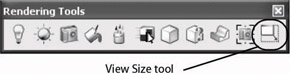
Enter a data point in View 8 to activate the tool. Turn off the Proportional Resize option and set X to 320 and Y to 240. Enter a data point in the view to resize.
 From the Animation Settings toolbox, click the Animation Preview tool to open the Animator Preview dialog box.
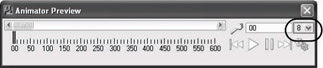
Set the Animator Preview window to View 8.
 Click the Preview Play button to preview the current script.
The animation plays in View 8. You can interrupt the preview by entering a reset.
| Note | Graphics acceleration is enabled in all views. With V8 XM Edition, you no longer need to turn on graphics acceleration to preview your animations. Depending on your graphic card s performance, you can reduce or increase the number of Skip Frames in the Animation Preview settings dialog if the preview is... |