AutoCAD 2008 Essentials

Using both English and metric units to illustrate the myriad drawing and editing tools for AutoCAD, this text includes 21 workshops that cover the basics, and complete small projects from concept through actual plotting.
 TABLE OF CONTENTS
 To issue this command, use one of the following methods:
From the dashboard and using the Dimensions panel, or from Dimension toolbar, click the Dimension Style button.

From menus select Format/Dimension Style.
Type dimstyle in the Command window.
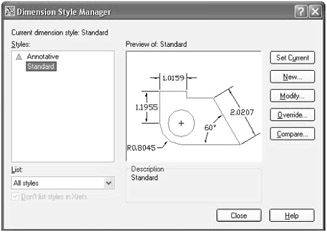
The following dialog box will appear:
By default there will be a premade dimension style called Standard.
Users can modify this style or create their own (preferable).
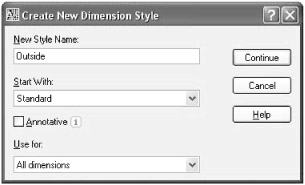
To create a new style, click, New button. The following dialog box will appear:

Type in the name of your new style following the same naming convention of layers.
Select the Start With style (you will start with a copy of this style).
By default, the changes you make will be implemented for all types of dimesions, but you can create a new dimension style that will affect certain types of dimensions.
Click the Continue button, then you can start modifying the settings.

We will cover each tab of the Dimension style dialog box in the following pages.
NOTE In this dialog box, whenever you find the Color setting, leave it as is. We should control our colors through layers and not through individual objects. This also applies for Linetype and Lineweight.