AutoCAD 2008 Essentials

Using both English and metric units to illustrate the myriad drawing and editing tools for AutoCAD, this text includes 21 workshops that cover the basics, and complete small projects from concept through actual plotting.
 TABLE OF CONTENTS
 Click the Fit tab and you will see the following:
As an introduction to Fit tab, users will notice that there are three things within the two Extension lines, which are: Dimension line, Arrowheads, and Dimension text. AutoCAD will put them all inside the two Extension lines when the distance is comfortable enough for all of them. But if there is not enough room? That is discussed next.
Under Fit options, you can control the following settings:
Select one of the five options to decide how AutoCAD will treat Arrowheads and Dimension text.
Select whether to Suppress arrows if they don't fit inside extension lines or not.
Under Text placement, you can control the placement of the text. If it doesn't fit inside the extension lines you have three options to choose from: Beside the dimension line, Over dimension line with leader, and Over dimension line without leader. Check the illustration below:
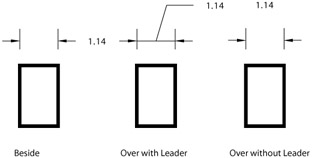
Under Scale for dimension features, you can control the following settings:
Keep Annotative off for now.
Set the Scale dimension to layout (we will discuss layouts in the next chapter)
For any distance, length, or size, users will input a value. Use overall scale of is a setting that will magnify or shrink the whole values in one shot. This will not affect the distance measured.
Under Fine tunning, you can control the following settings:
If you don't trust AutoCAD to...