AutoCAD 2008 Essentials

Using both English and metric units to illustrate the myriad drawing and editing tools for AutoCAD, this text includes 21 workshops that cover the basics, and complete small projects from concept through actual plotting.
 TABLE OF CONTENTS
 Click the Text tab and you will see the following:
Under Text appearance you can control the following settings:
Select the desired premade Text style to be used to write the dimension text. If you didn't create a Text style prior to this step, you can click the three dots button and create it right now.

Specify the Text color.
Specify the Fill color, which is the background color for the dimension text.
Input the Text height (this is only applicable if the assigned Text style has a text height = 0.0).
If you go to the Primary Units tab and assign the Unit format to be Architectural or Fractional, then the dimension text will appear something like 1 1/4. The question here is whether you want the fraction to appear with less height than the ordinary number, set the Fraction height scale accordingly.
Select whether to Draw frame around the dimension text or not.
As an introduction to Text placement, check the following illustration:
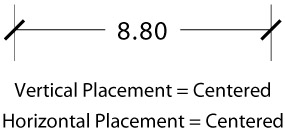
Under Text placement you can control the following settings:
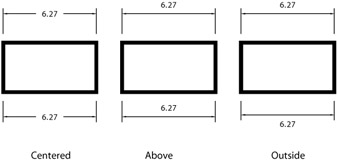
Select the Vertical placement. You have 4 choices: Centered, Above, Outside, and JIS (Japan Industrial Standard). Check the illustration below:
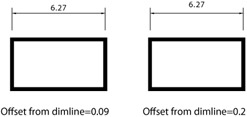
As for Above, set the Offset from dim line, which is the distance between the dimesion line, and the baseline of the dimension text. Check the illustration below:
Select the Horizontal placement. You...