AutoCAD 2008 Essentials

Using both English and metric units to illustrate the myriad drawing and editing tools for AutoCAD, this text includes 21 workshops that cover the basics, and complete small projects from concept through actual plotting.
 TABLE OF CONTENTS
 The first tab in the Dimension style dialog box is Lines, where we will control Dimension lines and Extension lines. It looks like the following:
Under Dimension lines you can control the following settings:
The Color, Linetype, and Lineweight of the Dimension line.
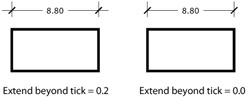
Extended beyond ticks (in order to edit this value, go to the Symbols and Arrows tab and set the Arrowhead to Architectural tick or Oblique). See the following illustration:
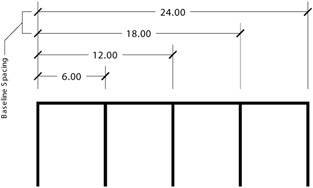
Baseline spacing, see the illustration below:
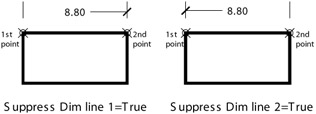
Select to Suppress Dim line 1, Dim line 2, for one of them or for both. See the illustration below:
Under Extension lines you can control the following settings:
The Color, Linetype, and Lineweight of the Extension lines.
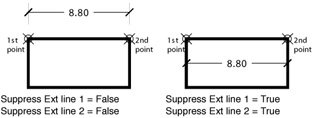
Select to Suppress Ext line 1, Ext line 2, for one of them or for both. See the illustration below:
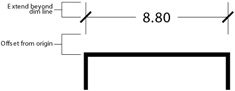
Specify Extend beyond dim lines and Offset from origin. Check the illustration below:
Select to set a Fixed length extension line. You have to specify the Length. In order to understand this issue, see the below example:
This is an example to clarify Fixed length extension lines:
Assume we have the following case and we want to put a linear dimension
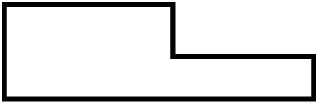
Before AutoCAD 2006, the only choice was as follows:
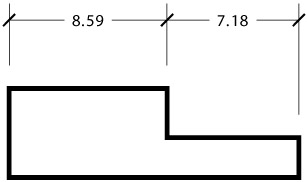
As of AutoCAD 2008, a new choice called Fixed length extension lines is available to get...