Vegas Editing Workshop, Second Edition

Chapter 1: Getting Started with Vegas

Installing Vegas

Installing Vegas 5 is no different from loading any application, but certain settings, steps, and habits can make operating Vegas more pleasant and efficient.

Before loading Vegas, make sure that any anti-virus software installed has been temporarily disabled. If a great deal of editing is to be done on this machine, it s worth considering building a separate user profile that keeps the anti-virus off at all times during the capture, editing, rendering, and printing-to-tape processes. Anti-virus applications are notorious for stealing system resources at will and for popping up when least wanted.

Vegas 5 can be loaded either from a boxed-product CD or from a downloaded executable file. If Vegas is being loaded from a CD that came in a box, place the CD into the CD drive, close it, and follow the instructions as they appear on the computer screen. Vegas auto-starts unless this feature has been disabled in the Control Panel.

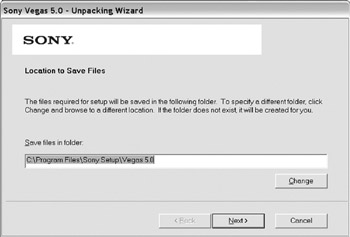
Complete the instructions given by Vegas installation dialog. Vegas can be installed to any drive; it s generally best to install to the C:\ (or boot) drive, unless the application will be used on a network boot. (Special licensing is required to run Vegas on multiple machines at one time, with network rendering this will be important to observe. At the time of this writing, Sony had not announced the cost of a client-only version of Vegas 5.)


Figure 1.1: Vegas asks where it should be loaded/ installed. In most cases, choose the boot drive.

UNLIMITED FREE
ACCESS
TO THE WORLD'S BEST IDEAS

SUBMIT
Already a GlobalSpec user? Log in.

This is embarrasing...

An error occurred while processing the form. Please try again in a few minutes.

Customize Your GlobalSpec Experience

Category: Anti-malware Software
Finish!
Privacy Policy

This is embarrasing...

An error occurred while processing the form. Please try again in a few minutes.