Vegas Editing Workshop, Second Edition

Audio recorded is immediately found on the timeline and is also found in the Media Pool. However, it s often necessary to place audio on the timeline that might be a take, from a stock music collection, an ACID loop, sound FX, or other stored audio file.
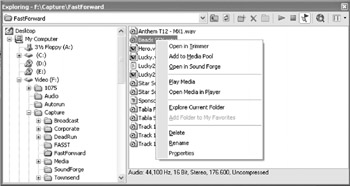
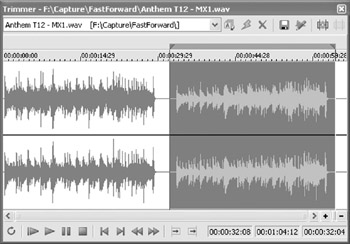
To do this, open the Explorer in Vegas and find an audio file to place on the timeline. Double-clicking the file inserts the file directly on the timeline. Right-clicking a file opens several options, such as opening the file directly in Trimmer, which allows audio sections to be trimmed before putting media on the timeline. After audio is placed on the timeline, it becomes an event.
Right-clicking also offers the option of placing the audio in the Media Pool or opening the file for editing in a third-party audio editor or in Sound Forge, depending on settings in the OPTIONS PREFERENCES AUDIO dialog. Opening the file in the Trimmer is a simple workflow that allows phrases or sections to be marked and added to the timeline.
After making a selection in the Trimmer, press the R key. This creates a namable region in the Trimmer that stays with the audio...