Vegas Editing Workshop, Second Edition

Extracting Audio from CDs

Vegas has tools to allow audio to be extracted from CDs. While a single track will play back from a CD, multiple tracks or clips from a sample library that are scattered all over a CD might not play back so well, due to the limited speed of a CD or CD-R. There are two menu areas where Vegas can be instructed to extract audio.

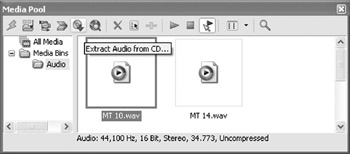
The first is the Media Pool. Clicking the Extract Audio from CD button opens a dialog where users are asked to choose which tracks are to be extracted. Audio can be extracted three ways:

  • By track (individual indexes can be selected)

  • By time selection (a range of time for extraction can be specified)

  • By the entire CD (the entire CD is extracted to the hard drive as one large file)


    Figure 5.35: Clicking the Extract Audio from CD button calls up a dialog requesting information as to where files should be extracted.

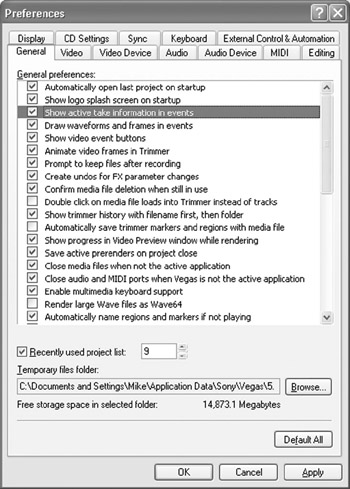
When placing any media on the timeline, it s easy to lose focus on what the media is or where it came from. Selecting OPTIONS PREFERENCES GENERAL and checking Show active take names in events places the name of the take on each event whether graphic, video, or audio in nature.


5.36: The Preferences menu has many choices to make editing in Vegas easier and more personal.

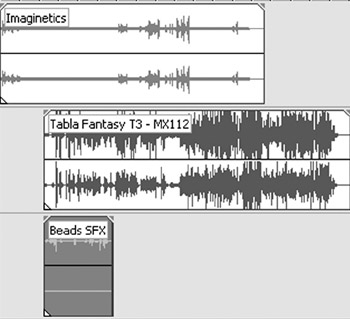
Figure 5.37: Active take names help identify events.

With audio on the timeline as events, it is...

UNLIMITED FREE
ACCESS
TO THE WORLD'S BEST IDEAS

SUBMIT
Already a GlobalSpec user? Log in.

This is embarrasing...

An error occurred while processing the form. Please try again in a few minutes.

Customize Your GlobalSpec Experience

Category: Optical Storage Media
Finish!
Privacy Policy

This is embarrasing...

An error occurred while processing the form. Please try again in a few minutes.