Digital Imaging

Provides a comprehensive practical guide to the entire digital chain, from capture -- with coverage of digital cameras, to output -- with extensive information on image adjustments and colour management.
 TABLE OF CONTENTS
 Most adjustments or modifications can be undone quickly by using the Edit > Undo (Command + Z). If the user needs to go further back than the last command however Photoshop allows 'multiple undos' via its history palette. The user can quickly go back to a previous version of the image by clicking on the appropriate history in the history palette. If the user needs to go further back in time than the history palette will allow the user may have to choose File > Revert to restore the image to its last saved version, choose a 'snapshot' from the History palette or use the 'History brush' to paint from a snapshot. It is recommended that different versions of the image be saved periodically using the 'Save As' command from the file menu so that in the event of a computer crash your recent work is not lost (alternatively choose save current state from the bottom of the history palette). It is important to note that all snapshots and histories are lost when the file is closed.
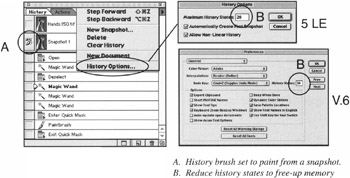
The History palette lists the previous 20 states by default. This may require a great deal of the available memory (computer RAM) if the image you are working on is large. Choose Edit > Purge to delete all histories and free up the memory when Photoshop is unable to perform the next operation (a warning screen will indicate this). If this continues to occur either increase...